Advanced: verify an order with the API node
The first thing support asks is usually "what's your order number?" and the second is opening the order system to find it. This flow does both before the ticket exists: the member types a number, Ticket Tool checks it against your API, and the ticket opens with the order status already on it.
You need the bot in your server and Manage Server permission. Add the bot first if you have not, then open the dashboard.
What you need
A Pro server, and an HTTP endpoint that takes an order number and returns JSON. If you sell through Shopify, Tebex or similar, a small endpoint on your own server that fronts their API is the usual shape.
What the member and staff see
What your endpoint needs to do
A GET that takes the order number and returns JSON. Here is the shape the
template expects:
{
  "status": "shipped",
  "total": "42.00"
}
You pick which fields to use in the flow, so yours can return more. Any field you do not map is ignored.
Ticket Tool treats any non-2xx status, a timeout or a network error as a failed
lookup, and sends the member down the not-found path. A 200 with an empty
result counts as success, so return a 404 for an order that does not exist.
Your endpoint has 15 seconds to answer by default, 30 at most, and it has to be
reachable from the public internet: addresses on private networks are blocked.
Keep it read-only and narrow
Return only what support needs, which is status and total, not addresses or payment details. Put any secret in the node's authentication settings rather than in the URL, and make sure the endpoint cannot change anything.
Build it
Import the template
Start from the Order lookup then open templateOn Automations → Flows, press Templates and pick Order lookup then open. The flow has a form, an API request, and two ticket paths.
Point the API node at your endpoint
Click the Look up order node and fill it in:
| Field | Value |
|---|---|
| Request URL | Your endpoint, with the order number inserted using the variable button. It is the answer to the form's "Order number" question, so it looks like {{responses.Order number}} |
| HTTP method | GET |
| Authentication | Open the Authentication section and pick None, Bearer token or Basic Auth. The template starts on None. For an API key, add it as a custom header instead |
| Field mappings | The template already maps status to order_status and total to order_total. Leave them, or see below to change them |
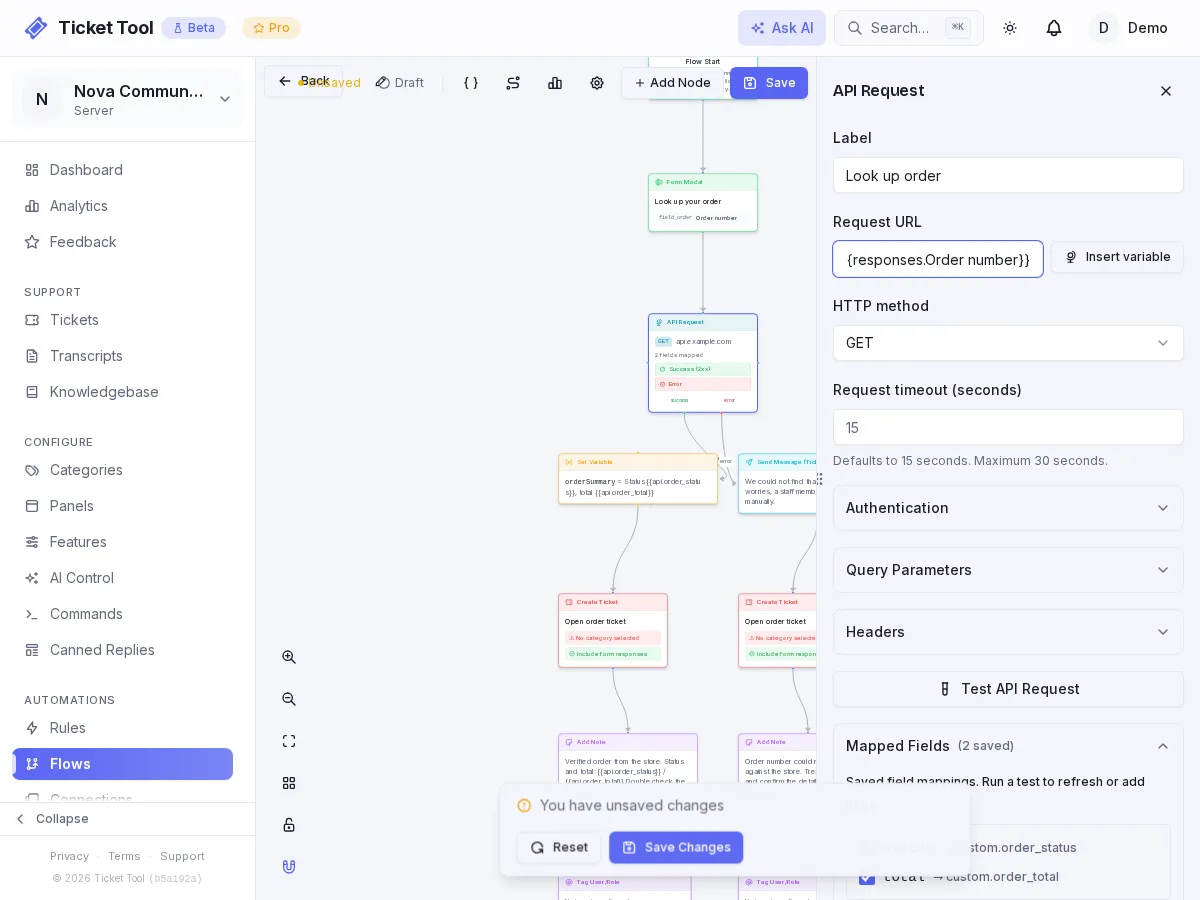
The mappings turn parts of the response into variables. order_status becomes
{{api.order_status}} further down the flow, and that is how the status ends up
in the staff note.
To map other fields, press Test API Request with a real order number filled
in, then tick the fields you want under Response Field Mapping. Each one
becomes {{api.<name>}}, where the name is the field's path with dots turned
into underscores, so customer.email becomes {{api.customer_email}}. You
cannot rename a mapping in the editor. The template's flow reads the response as
JSON, so leave that as it is.
Choose the ticket category
Both Open order ticket nodes need a category. Set the same one on each, or send unverified orders somewhere else if you want to triage them separately.
Set who gets pinged
The Mention fulfillment node pings a role when the order is verified, and Mention support pings one when it is not. Choose a role for each.
Switch it on and add a panel button
Press Save, then choose Activate Flow from the settings menu. Add a button
to a panel that runs it: Panels, edit a panel, Add Item, and choose the
flow under Flow or Category. Post the panel with Send panel or
/setup-panel.
Test both paths
Open the panel with a second account and try a real order number, then a fake one.
| Send | What should happen |
|---|---|
| A real order number | The ticket opens, and a staff note shows the status and total |
| A number that does not exist | The member sees "We could not find that order number", a ticket opens, and the note says the order is unverified |
Verified order from the store.
Why an unverified order still opens a ticket
A failed lookup is not the member's fault. Your endpoint may be down, or the number may be a typo, and a dead end here sends people away. The template opens the ticket anyway and marks it unverified, so a person checks by hand.
Variations
Verify a license key
The License verify then support template does the same for a key, and adds AI routing on the result.
Pull more fields
Add mappings for anything the endpoint returns, and reference them in the note, the ticket message or a condition.
Troubleshooting
| What you see | Do this |
|---|---|
| Every order goes down the not-found path | The URL is still blank, the variable in it is wrong, the endpoint is not public, or it returned an error or timed out. Call it yourself with the same number |
The note shows {{api.order_status}} as text |
The mapping name and the variable do not match. order_status in the mapping, api.order_status in the note |
| Nothing happens when the button is pressed | The flow is not switched on, or the API node has no URL |
| The template's Use button is disabled | The list shows a Pro badge. API nodes need Pro. Check the server's plan |