Set up staff applications in Discord
Members press a button, fill in a form, and their answers land in a private review channel. Staff press Approve or Deny, and Approve can hand the applicant a role automatically. The buttons appear once you switch on Require staff approval on the Application node.
You need the bot in your server and Manage Server permission. Add the bot first if you have not, then open the dashboard.
Which plan
Approve and Deny buttons come from the Application flow node, which needs Community or Pro. Without it you can still take applications with a form and a ticket, and decide by hand. That version is further down.
What members and reviewers see
Applicant: @Alex
Build it
Create the flow
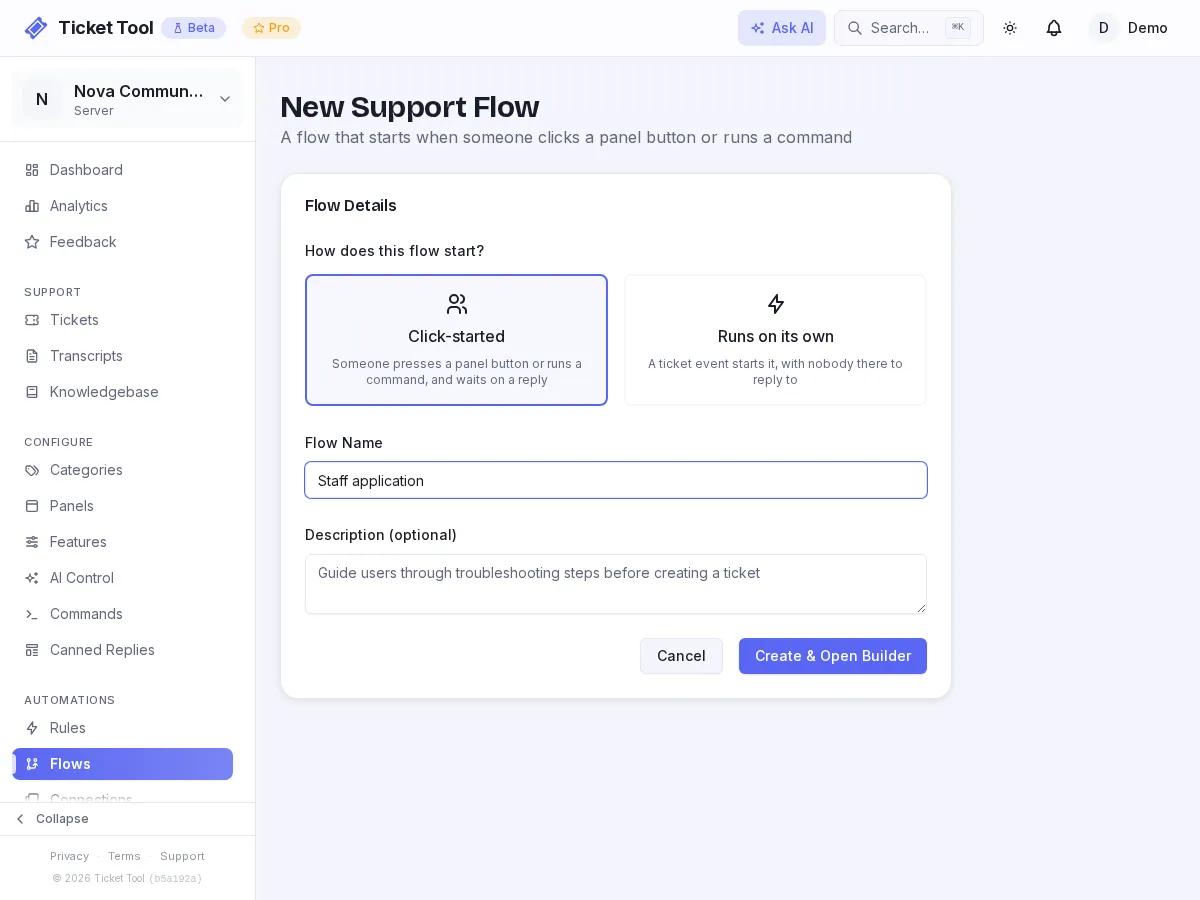
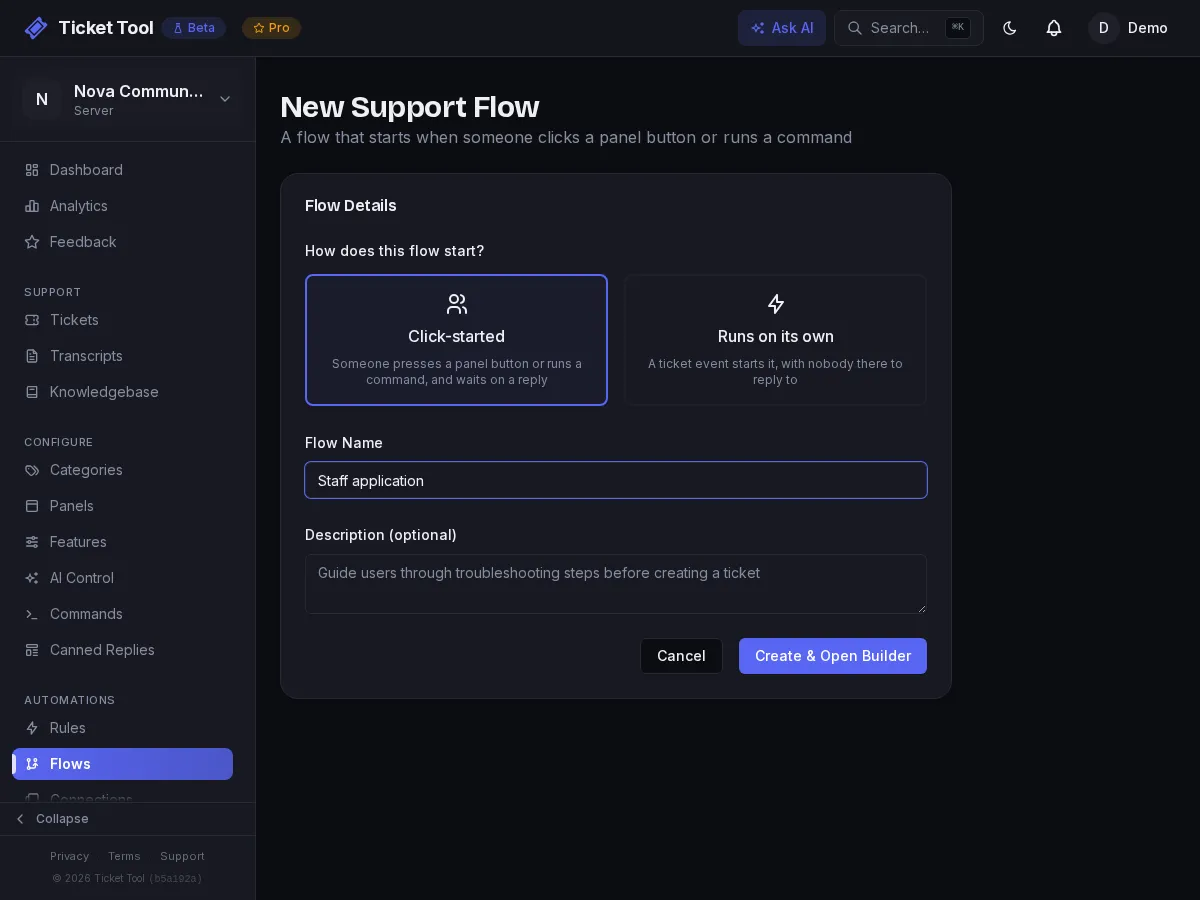
Open Automations → Flows and press New Flow. Under How does this flow start? choose Click-started, name it "Staff application", then press Create & Open Builder.
Add the intro message
Add a Send Message node after Start and set its Message type to With buttons (branch per button). This is what members see before they commit, so use the message to say what the role involves. Add one button labeled Apply and connect the button to the next node.
Add the Application node
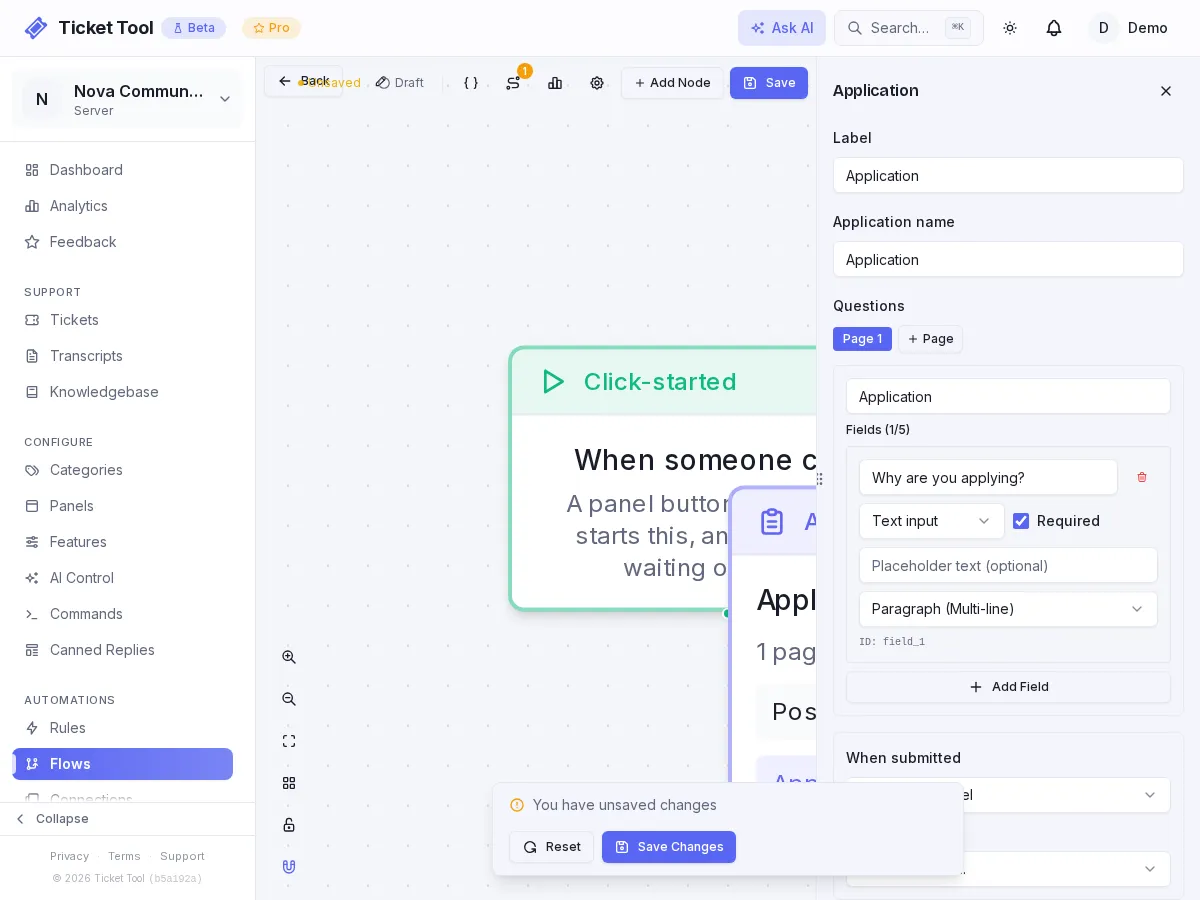
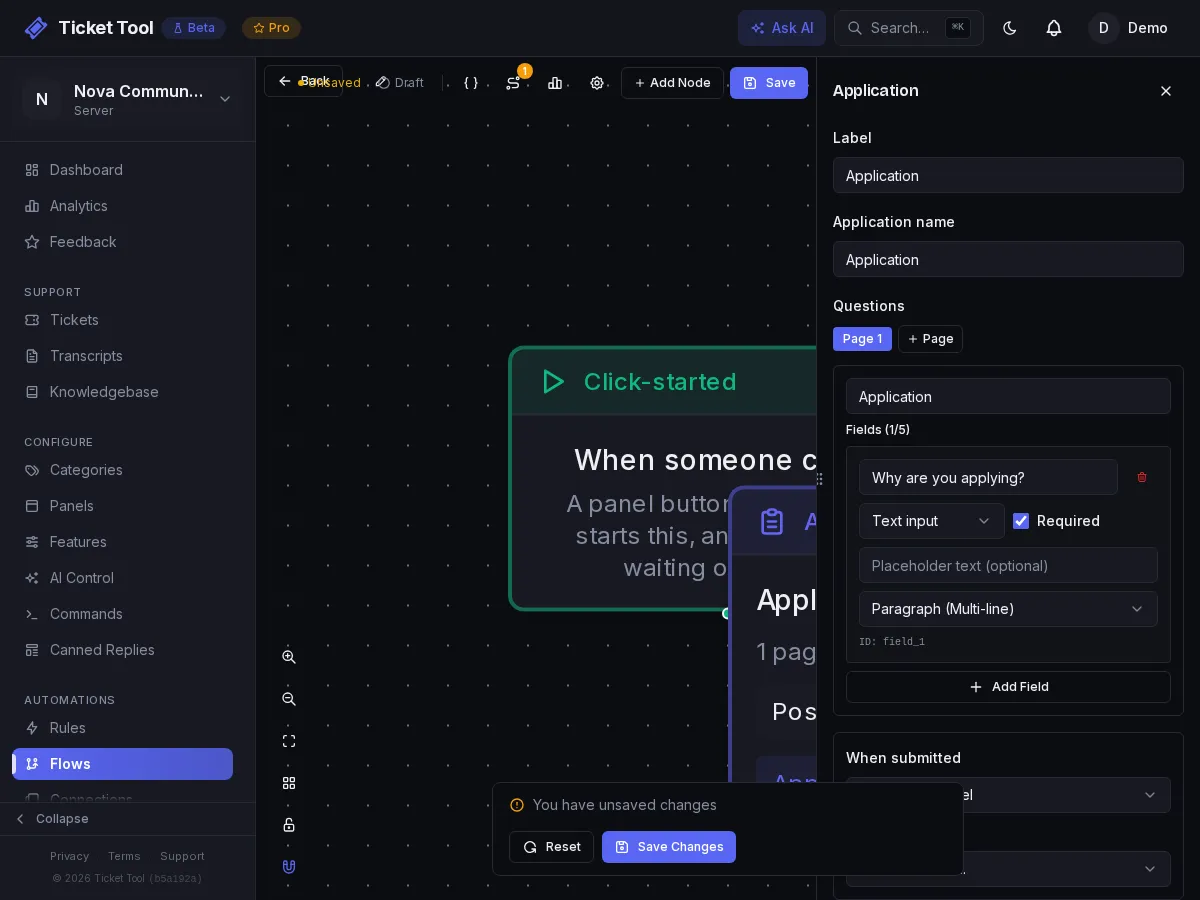
Add an Application node and connect the Apply button to it. This one node replaces the form, the review post and the decision buttons. Fill it in:
| Field | What to put |
|---|---|
| Application name | "Staff Application". Shown on the review post and to the applicant |
| Questions | Your questions. Each page holds up to five; add another page for more |
| When submitted | Post to a channel for a private review channel, or Create a ticket to review in a ticket |
| Destination channel / Ticket category | Depends on the choice above. A private staff-only channel is the usual answer |
| Require staff approval | Tick it. Without it the Approve and Deny buttons and the settings below do not appear |
| Who can approve or deny | Pick your admin or hiring roles. Only they can press the buttons. Leave it empty and anyone with Manage Server can |
| Role to grant on approval | The staff role. Leave it as No role to only send the message |
| Reviewer comment | No comment, optional, or required. Required is useful for denials |
Keep it short
Every extra page is another Continue press for the applicant. Three to five questions across one or two pages gets far more finished applications than twelve.
Fill in Approval message to applicant and Denial message to applicant too. The bot sends them to the applicant as a direct message, so an applicant with DMs closed sees nothing. Write them like a person: "You're in! Welcome to the team." beats "Your application was approved."
Save and turn the flow on
Press Save, then open the settings menu and choose Activate Flow. You can also click the Draft label at the top of the builder. A flow that is saved but not active will not run.
Give members a way to start it
Add a button that starts the flow. Open Panels, edit a panel (or create one),
press Add Item, and under Flow or Category choose your flow instead of a
category. Save the panel, then post it: use Send panel on the Panels page, or
run /setup-panel and pick the panel and a channel (it needs the Administrator
permission). Posting to a channel where the panel is already up updates that
message in place.
/setup-panel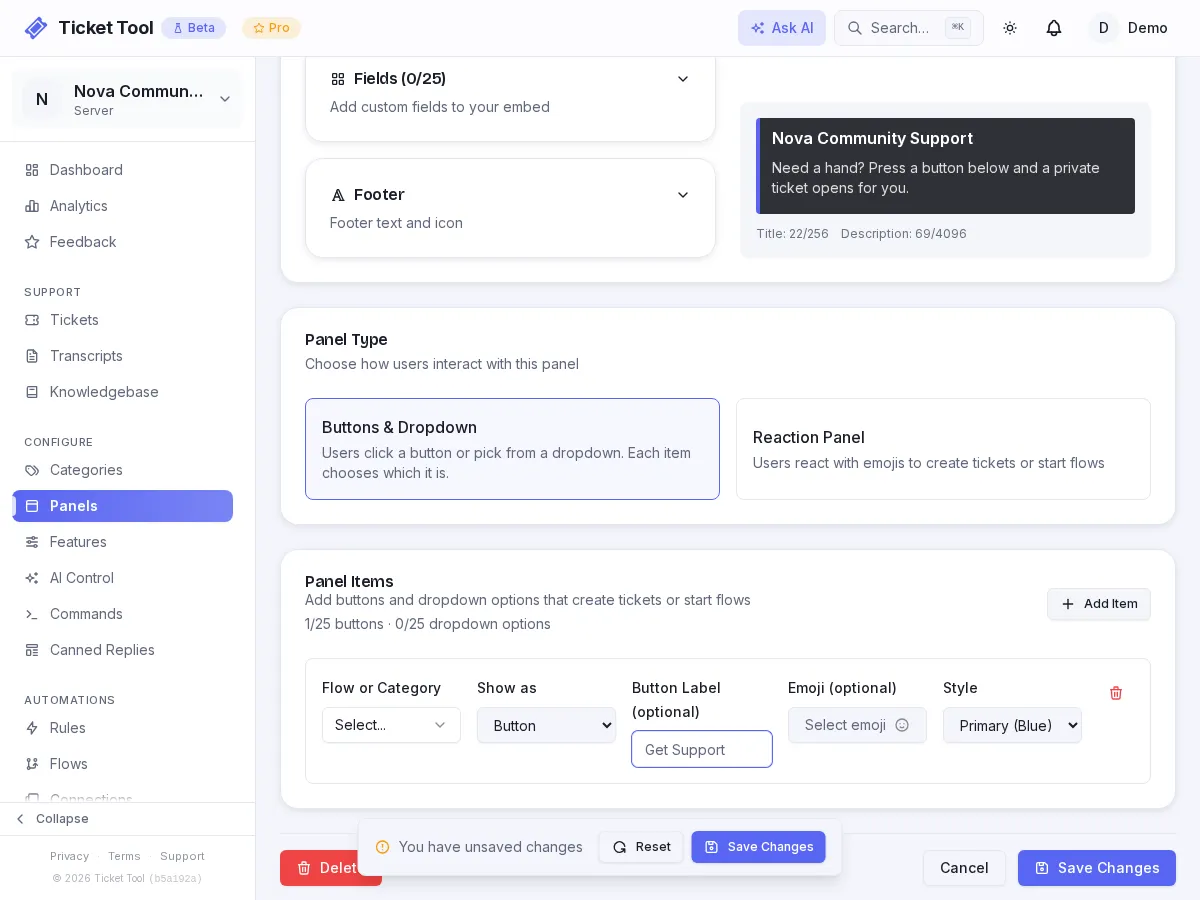
Test it as an applicant
Use a second account, or ask a friend. Press Apply, fill in the form, and check the review channel. Then press Approve and confirm the role arrives.
What happens when you press Approve
The application is saved as a record when it is submitted. Approve and Deny work on that record, not on a flow that is still running, so a reviewer can decide hours or days later and it still works, even if the bot has restarted.
The approver roles and the role to grant are saved with each application when it is submitted. If you change them later, applications already waiting keep the old ones.
If the bot cannot assign the role, for example because the staff role sits above the bot's own role in the server's role list, the reviewer sees a notice saying so ("I couldn't assign the role. Move my role above it in Server Settings."). Drag the bot's role above the role it needs to grant.
Without the Application node
If your server is not on Community or Pro, the Content creator application template does most of the job: a form, then a private ticket holding the answers.
Start from the Content creator application templateImport the template
On Automations → Flows, press Templates and pick Content creator application.
Change the questions
Open the Form node and replace the questions with yours. Change the intro message so it describes the staff role.
Point it at a category
Open the Create Ticket node and set its category to a private one that only your hiring team can see. The template leaves it blank.
Decide by hand
Each application opens as a ticket. Reply in it, then close it. To give the role yourself, use Discord's own role menu.
Upgrading later is one swap: replace the form and ticket nodes with a single Application node.
| Flow limits | Free | Community | Pro |
|---|---|---|---|
| Active flows | 5 | Unlimited | Unlimited |
| Total flows | 10 | Unlimited | Unlimited |
Troubleshooting
| What you see | Do this |
|---|---|
| Apply does nothing | The flow is saved but not active, or the panel button was never updated. Check both |
| The applicant sees a modal error | A modal takes at most five fields per page. Move extras onto a second page |
| Approve grants nothing | The bot cannot manage that role. Move the bot's role above it |
| No Approve or Deny buttons | Require staff approval is off on the Application node. Tick it and save |
| A reviewer cannot press Approve | Their role is not in Who can approve or deny. Add it and save; applications already submitted keep the approver list they were submitted with |