Run your ticket system in your language
Members should not have to read English to open a ticket. This guide walks the whole path a member sees, from the panel to the close message, and switches each part into your language.
You need the bot in your server and Manage Server permission. Add the bot first if you have not, then open the dashboard.
Two optional Pro extras
Everything in the main steps works on every plan. Two optional steps at the end, automatic reply language and translating what members write for your staff, use AI and need Pro.
What a member sees, and where you change it
A ticket has four moments where the bot speaks. Each lives in a different place in the dashboard.
| Moment | Where to change it |
|---|---|
| The panel: message and buttons | Panels |
| The opening message inside a ticket | Categories, the category's Messages tab |
| Buttons and notices during a ticket (Close, Claim, "ticket closed") | Settings → Localization |
| A form that asks questions first | The flow's Modal node |
The Localization tab does the most work per minute, so start there.
Set it up
Pick a language pack
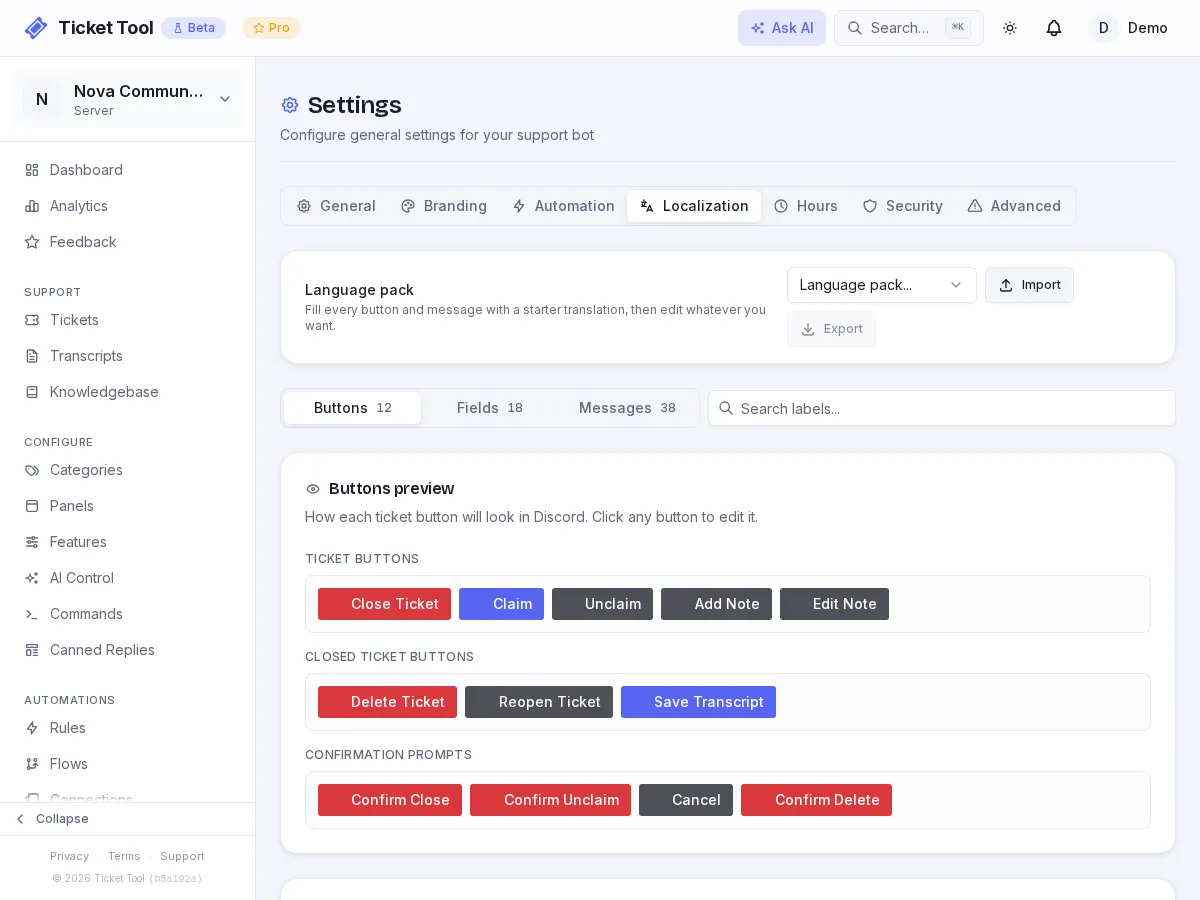
Open Dashboard → Settings → Localization and choose a language in the Language pack card at the top. Packs cover English, 繁體中文, 简体中文, Español, Deutsch, Français, Português (BR), 日本語, 한국어 and Русский.
The pack fills all three tabs at once: the 12 buttons, 18 field labels (the headings on ticket and log embeds, like "Closed By") and 38 messages, 68 strings in total. A dialog tells you how many strings it will fill and asks you to confirm. If you already have custom text it also asks whether to Keep my custom text or Replace everything. Nothing is saved until you press Save changes.
A pack is a starting point
Every string stays editable after you apply a pack. Fix wording to match how your community talks, or fill gaps if the pack shows less than full coverage.
Check the preview
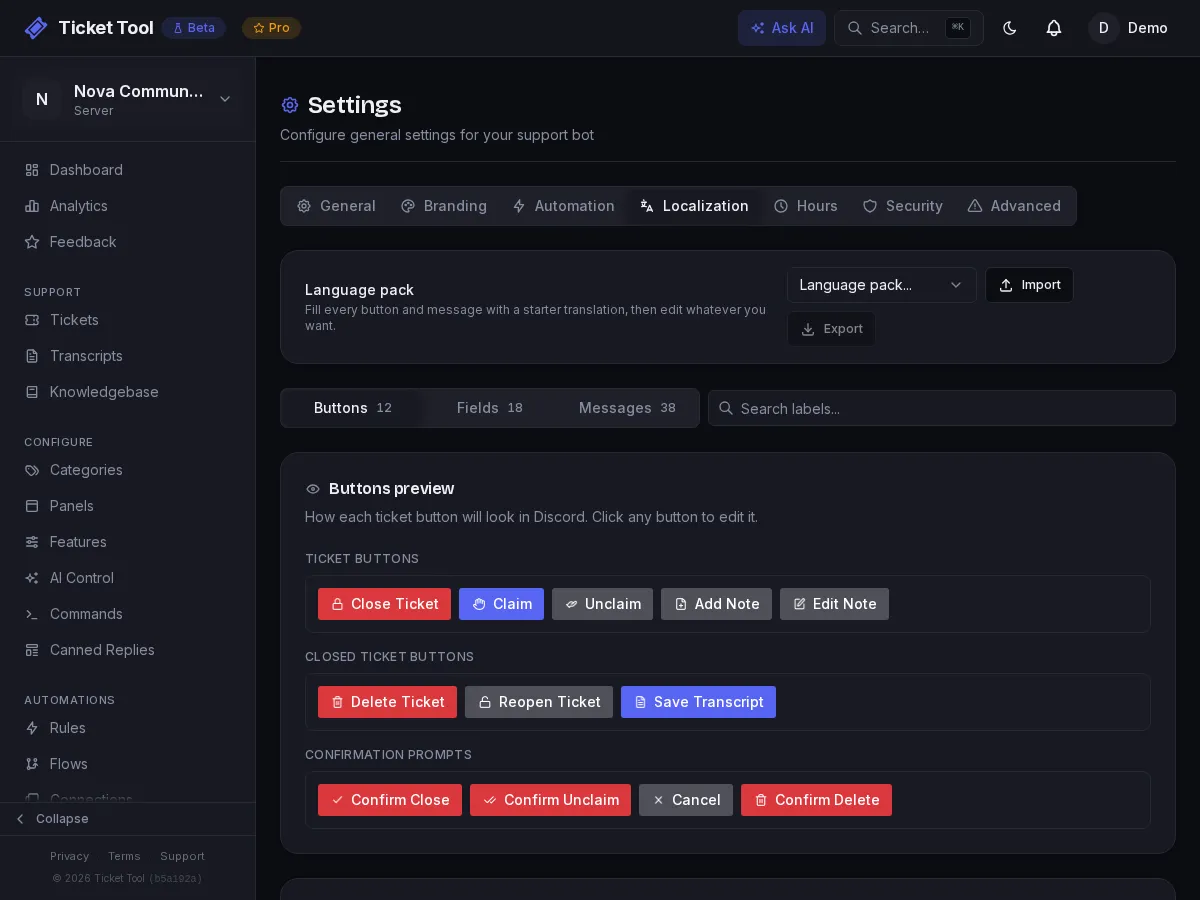
The Buttons tab shows a live preview row of the buttons as Discord will draw them. Click one to jump to its field. Button labels are limited to 80 characters, which is Discord's limit.
Este ticket ha sido cerrado. Gracias por contactarnos.
Translate the panel
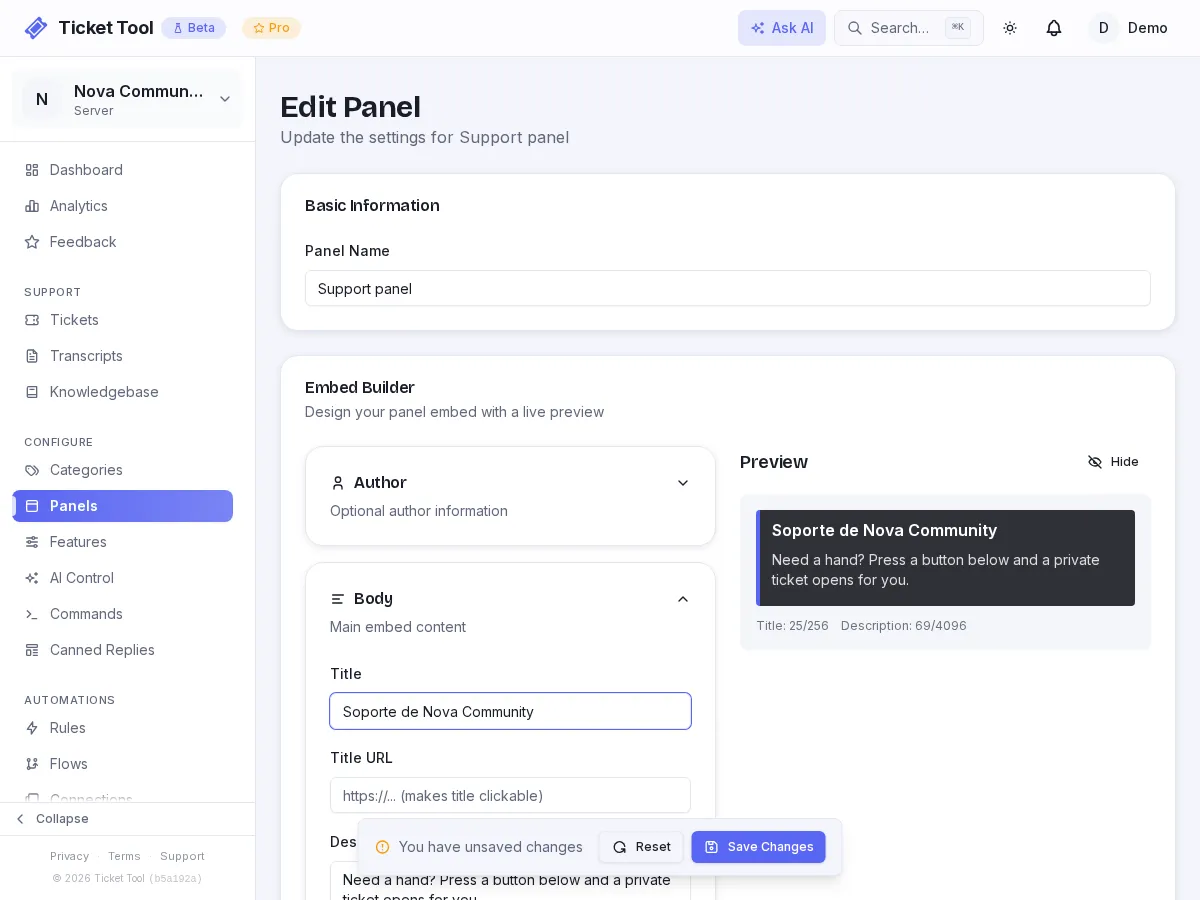
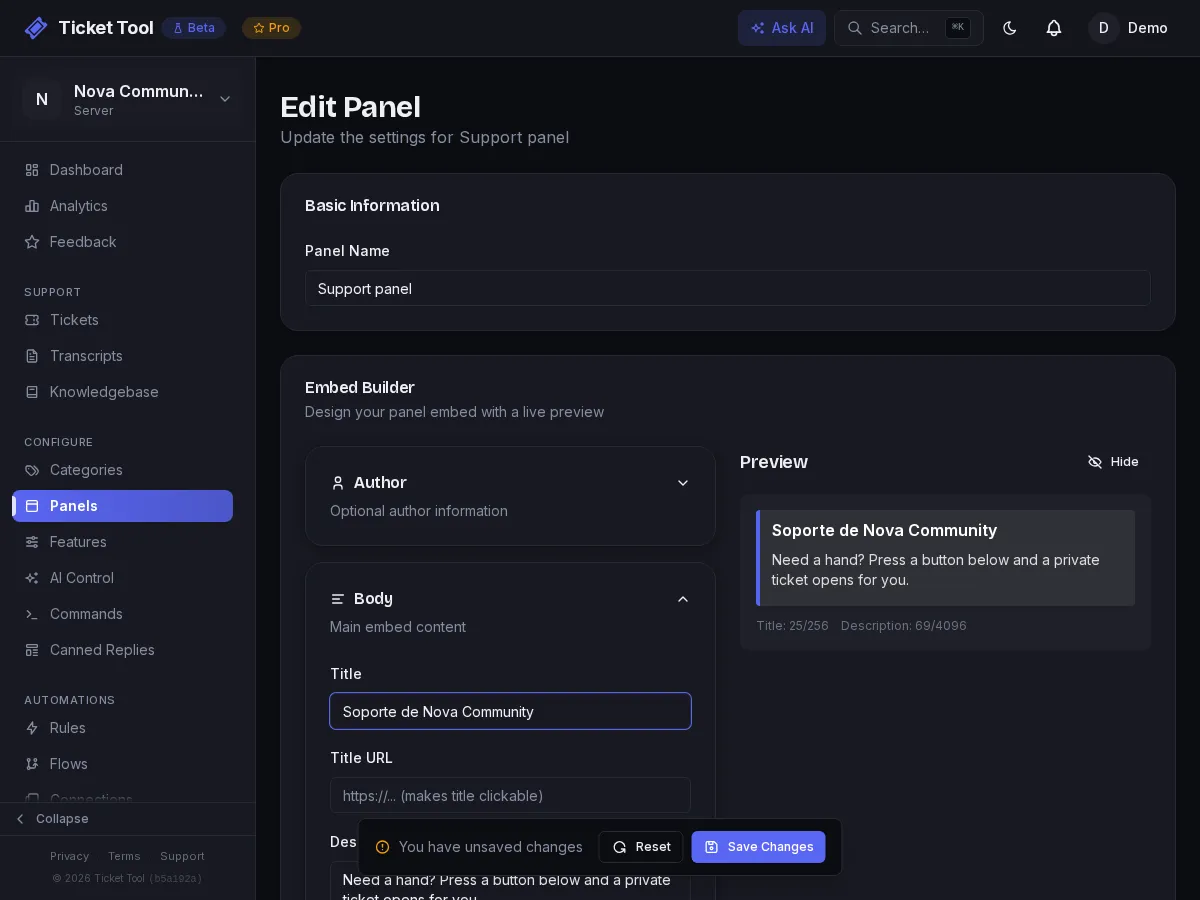
Open Panels, edit your panel, and change the title, description and button labels. This is the first thing members see, so it matters most.
Translate each category's messages
Open Categories, edit each one, and use the Messages tab to change the intro message members see when their ticket opens, plus the close confirmation and closed messages. The same tab holds optional direct messages for ticket created, ticket closed and added to ticket, and any text you write there wins over what you set under Localization. If you have added Workflow Buttons on the Buttons tab, name those in your language too.
Translate your forms
If a flow asks questions before the ticket opens, the questions are text you wrote, so they stay as they are until you change them. Open the flow, click the Modal node and translate the title and each question.
Test it end to end
Open a ticket from the panel using an account that is not an admin. Walk through it: open, reply, claim, close, reopen. Anything still in English is either a string you have not set or a message in a category that overrides the default.
Copy it to another server
Export on the Localization tab downloads your text as a file, and Import loads one back. Use it to give a second server the same translation or to keep a backup. Import only takes strings it recognizes, so an old file loads what it can and ignores the rest.
What this does not translate
Text Discord itself draws, like a slash command's name, is not something Ticket Tool controls. And when a member writes in another language, your staff still read it in that language. The Pro steps below fix that.
Pro: answer in the member's language
ProBoth need Pro: the AI Assist settings can only be changed on Pro, and the Translate node is a Pro node. Together they close the loop.
Reply language
On AI Control → AI Assist → Voice, leave Reply language on Auto and the assistant answers each member in the language they wrote in. Pin a language to force every reply into it.
Multi-language intake
The Multi-language intake template lets members write in any language, translates it for your team on the way in, and keeps both versions on the ticket.
Set the reply language on the Reply language setting, not in the persona text. The persona shapes tone, and the language setting is applied after it, so asking for a language in the persona can contradict it. Details are in AI Control.
Troubleshooting
| What you see | Do this |
|---|---|
| Some buttons are still English | You have not applied a pack, or the button is one you named yourself, such as a panel button or a category's Workflow Button |
A message shows {{something}} in braces |
A placeholder was used where that message cannot fill it. The editor only offers placeholders each message supports, so retype it from the Variables button |
| An open ticket still shows old text | New tickets use your text right away. Open tickets pick it up the next time their buttons refresh |
| The pack shows less than full coverage | Fill the gap yourself. Untranslated strings stay in English |