Set up AI replies, end to end
By the end of this guide a new ticket gets an answer written from your own articles within seconds, in your server's voice, and your team can rate every reply.
You need the bot in your server and Manage Server permission. Add the bot first if you have not, then open the dashboard.
Pro
The AI that answers on its own is a Pro feature: the Reply with an AI response rule action, the AI flow nodes and the AI Assist settings. Without Pro, the AI Assist tab in AI Control opens as a read-only preview, so you can look at every screen in this guide first. AI you press yourself works on every plan: the AI button in the ticket viewer draws on a smaller monthly token allowance, and Ask AI answers from the product documentation until the plan is a paid one.
How it fits together
The assistant draws on what you give it. If nothing in your knowledge matches, what it does next is up to the grounding setting below.
Set it up
Give it something to say
Open Dashboard → Knowledgebase and write an article for each question you get repeatedly. Publish them: draft articles are ignored. Ten good articles beat a hundred thin ones.
If your knowledge base is empty, the assistant has nothing to ground on. See FAQ first, ticket second for writing the first one.
Set its voice
Open Dashboard → AI Control, go to the AI Assist tab and find the Voice section.
| Setting | Suggested start |
|---|---|
| Persona / custom instructions | Two or three sentences: who you are, how you sound, what it must never promise. "You are the support voice of Acme. Be warm and brief. Never promise a refund without a staff member confirming." |
| Reply language | Auto answers in whatever language the member wrote. Pin one only if you want a fixed language |
| Reply style | Friendly, unless your community prefers formal |
| Keep replies brief | On. Short answers get read |
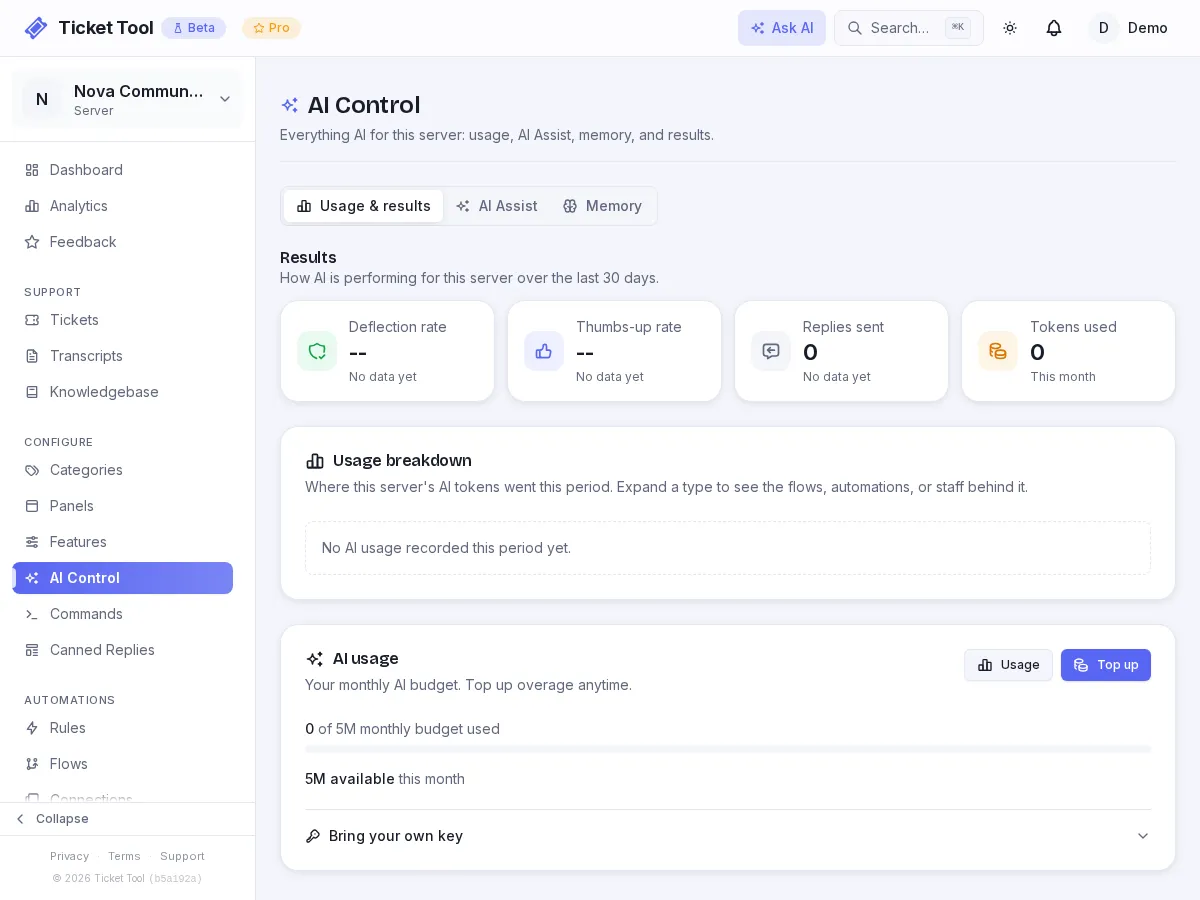
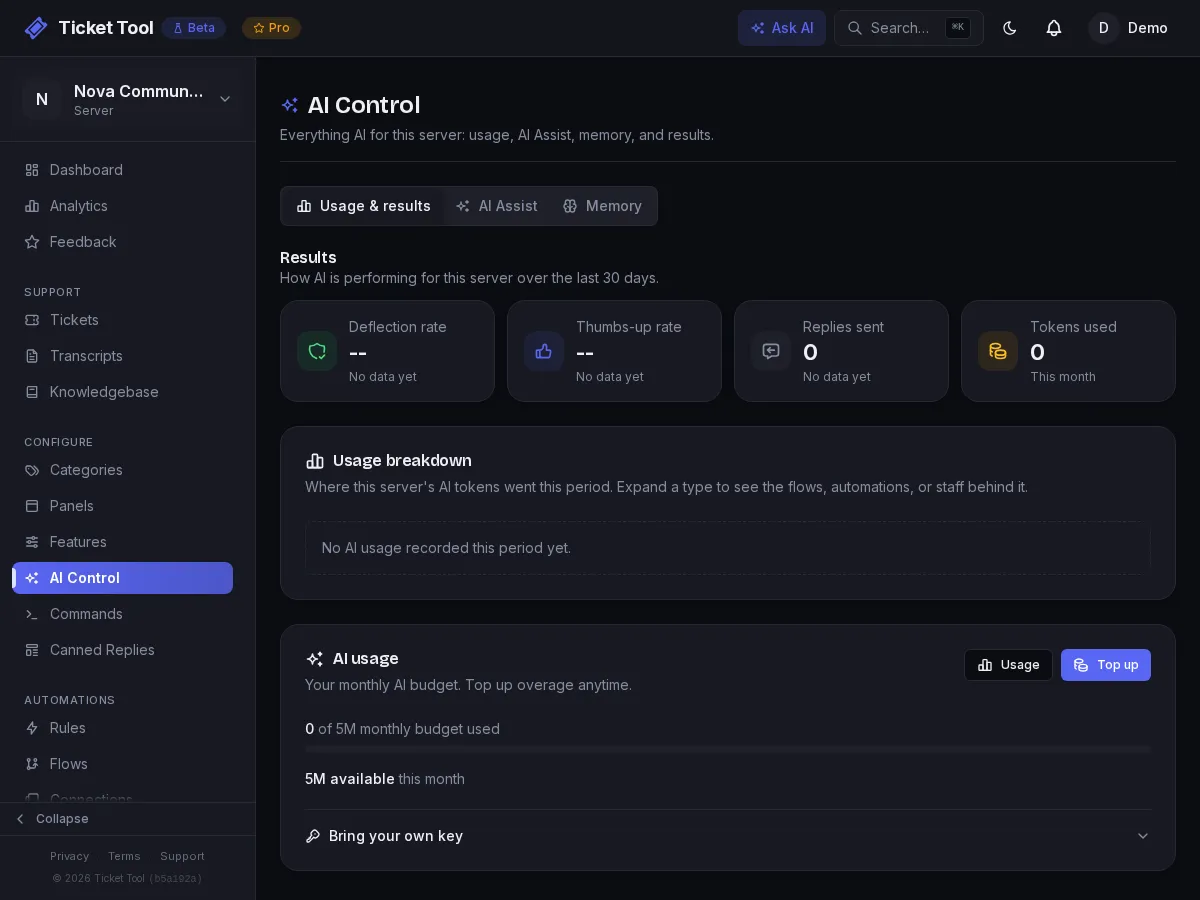
Set the language on Reply language and not in the persona text. The persona shapes tone, and the language setting is applied after it, so the two can contradict each other.
Choose how strict grounding is
In the Grounding section, leave Ground replies in Knowledge Base + Memory on and set Answer strictness. There are three positions:
| Position | What it does |
|---|---|
| Strict | Replies only when an article or approved answer genuinely matches. Otherwise it stays quiet and can ping your Escalation role so a person takes over |
| Balanced | The default. Prefers relevant knowledge and falls back to a general answer |
| Lenient | Always attempts an answer, even with no knowledge match. Best when your knowledge is thin |
Once you have several articles, Strict with an escalation role is the safest way to run: covered questions get an instant answer and everything else gets a human. Strict does nothing until at least one article is published, and behaves like Balanced until then.
Cap what it does on its own
Under Auto-reply limits, set Max auto-replies per ticket so a long back-and-forth never turns into an AI loop. It counts replies from rules and from the built-in first-message reply alike.
This section also has a Reply to first customer message switch. That is the one-click version of what the rule below does, with Auto-reply categories to restrict it (empty means all categories). Use the switch or the rule, not both: they are separate, so having both on can answer the same message twice. This guide uses a rule because it can also carry conditions and answer every message. The categories setting applies to the switch only; a rule has its own category setting.
Create the rule
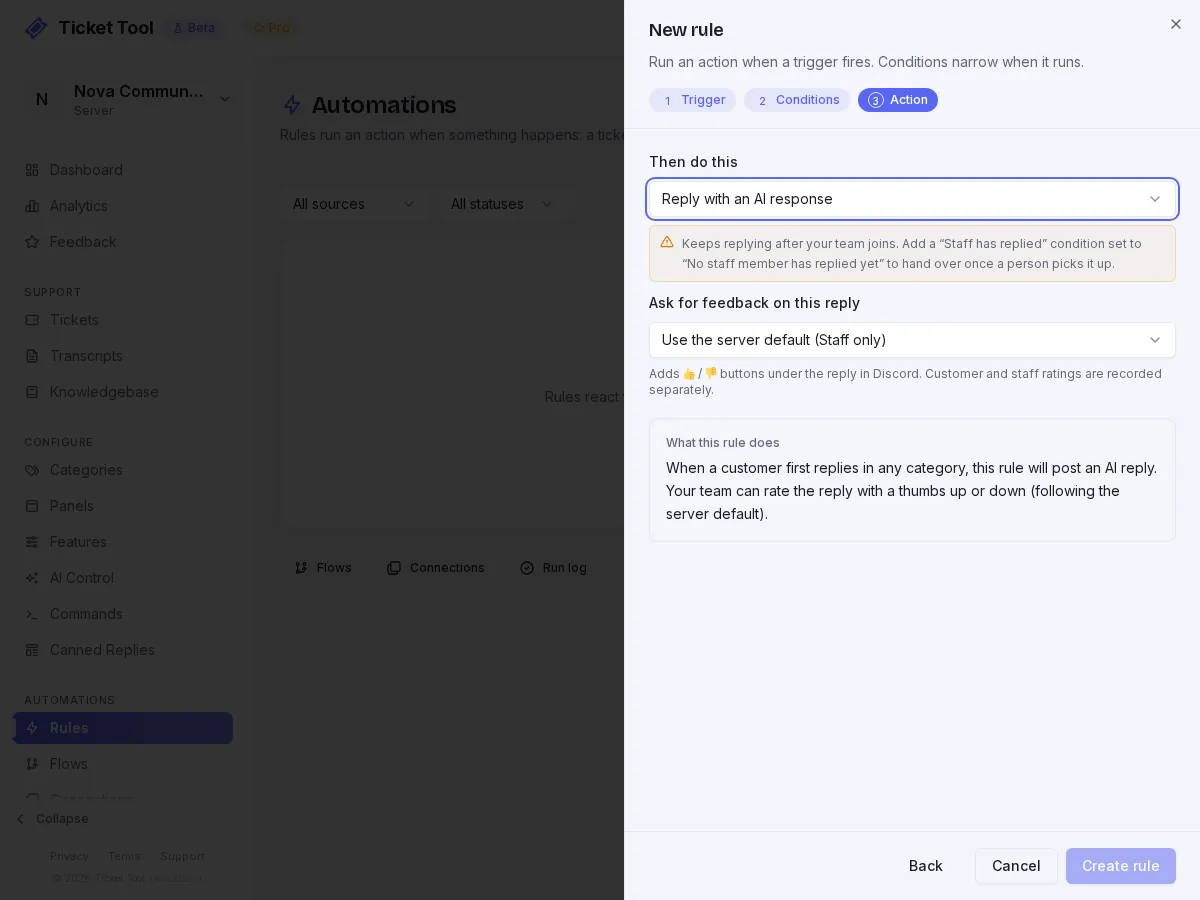
Open Dashboard → Automations → Rules and add a rule. The builder has three steps: Trigger, Conditions, Action.
| Field | Value |
|---|---|
| Rule name | "AI first reply" |
| Trigger | When a customer first replies |
| Limit to a category | One test category for now. Leave it on All categories only once you trust the answers |
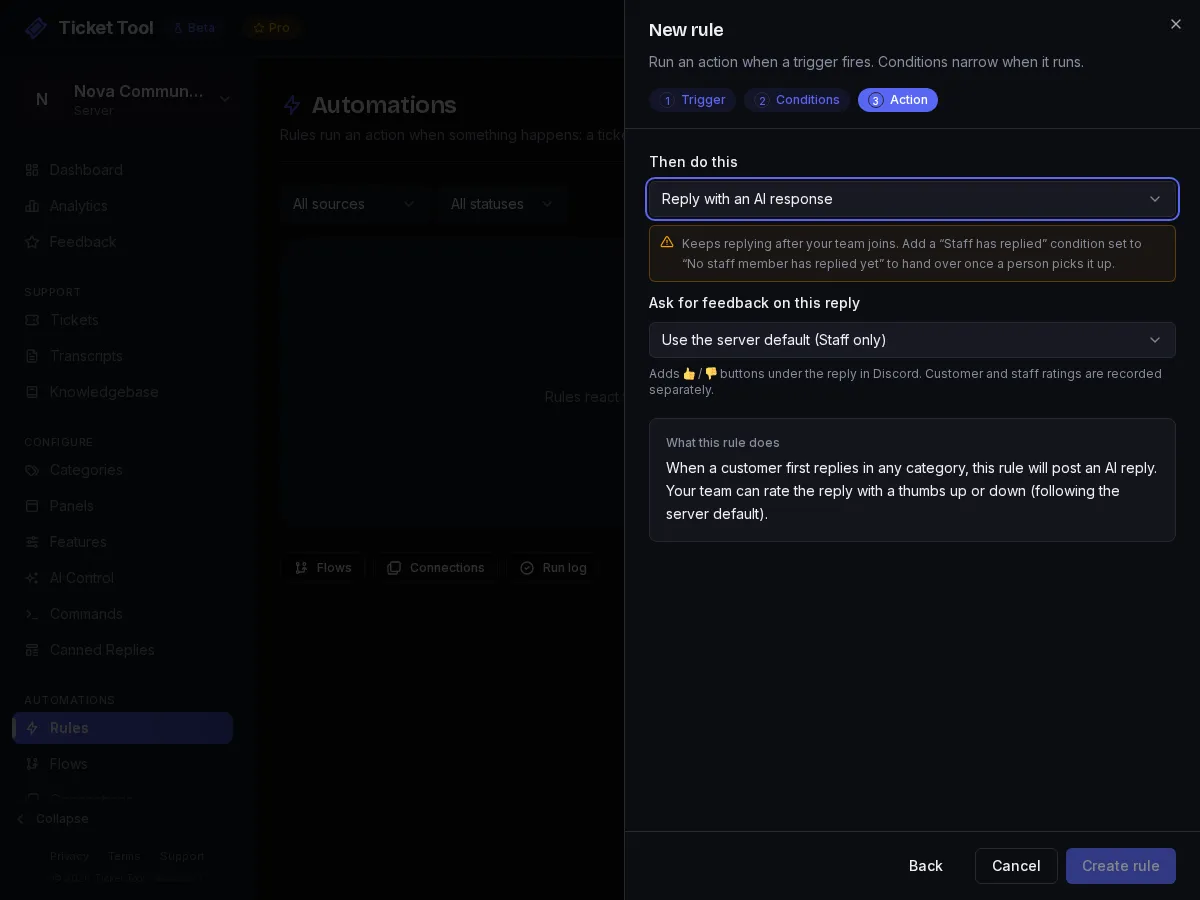
| Then do this | Reply with an AI response |
| Ask for feedback on this reply | Use the server default, which starts as staff only: your team gets 👍 / 👎 buttons under each reply |
The rule has no draft mode: a reply goes to the member as soon as it is written. That is why you start on a test category.
Use a trigger that carries a message
The AI needs a message to reply to. When a customer first replies and When a customer sends a message work. If you test a rule with a manual run, or wire it to a trigger with no message, such as When a ticket is created or an inactivity trigger, the rule log under Automations → Activity Logs shows Skipped: AI reply needs a triggering message. That is not a fault in your setup. Test with a real message in a real ticket.
Test it on your test category
Open a ticket in the test category with a second account and ask something your articles cover. The bot waits briefly for the customer to stop typing, so a run of short messages gets one answer, then replies in the ticket. Your team sees 👍 / 👎 buttons under it.
You can link your account from Settings, then Connections. Press Link account and sign in. If the button is missing, make sure you are on the latest app version.
Try a few questions your articles do not cover as well, to see what Strict does. Rate the replies over a few days: a 👎 means the article behind it needs work.
Widen it
When the replies are mostly right, edit the rule and set Limit to a category to All categories, or add a second rule for the next category. Staff can still step in at any point.
Review every reply first
If you want a person to approve each reply before the member sees it, use the flow route instead of the rule action. The AI node in an automation flow has a Mode of Auto reply with a Delivery setting, and Draft for staff review holds the reply for staff to Send, Edit or Discard. Run the flow from a rule with Run an automation flow, as in the agent guide.
You can link your account from Settings, then Connections. Press Link account and sign in.
When a rule runs the flow, the draft is posted in the ticket channel, so the member can read it too. Only support staff can press the buttons.
Watch what it is doing
AI Control shows the results your team is getting on its Usage & results tab, and what has been captured for review on the Memory tab. Check it after the first few days: a reply your team keeps rating down is an article to rewrite.
Reply cost comes out of a monthly token budget, shared with the AI button in the ticket viewer:
| AI budget | Free | Community | Pro |
|---|---|---|---|
| AI tokens / month | 0 | 0 | 5,000,000 |
You can buy top-up tokens that never expire, or add your own provider key to run on your own account. Usage is still shown either way.
Staff shortcuts
The same knowledge is available to your team without any rule:
- The AI Assist button in the ticket viewer summarizes a ticket and drafts a reply. It works on every plan, drawing on the monthly token budget above.
/draftdrafts a reply in Discord, and right-clicking a customer message and choosing Apps → Reply with AI answers that specific message. These two need Pro./askanswers questions about the product, and on Community and Pro about your own server too.
Details on each are in AI Assist.
Troubleshooting
| What you see | Do this |
|---|---|
| The rule never replies | Strict is on and nothing matched, the rule's category is not the ticket's category, or the trigger has no message. Check Activity Logs |
| Skipped: AI reply needs a triggering message | You ran it manually, or the trigger carries no message. Test with a real message |
| The customer got two replies | Reply to first customer message and a first-reply rule are both on. Turn one off |
| It answers in the wrong language | Set Reply language in the Voice section. Language in the persona is not reliable |
| Replies stop mid-month | The token budget is used up. Top up, or add your own key |
| It says something you did not write | Tighten grounding, add the missing answer as an article, and limit the rule to a test category until it stops |