Answer common questions before a ticket opens
Half of most support queues are the same handful of questions. Put the answer in front of the member first, and open a ticket only if they say it did not help.
You need the bot in your server and Manage Server permission. Add the bot first if you have not, then open the dashboard.
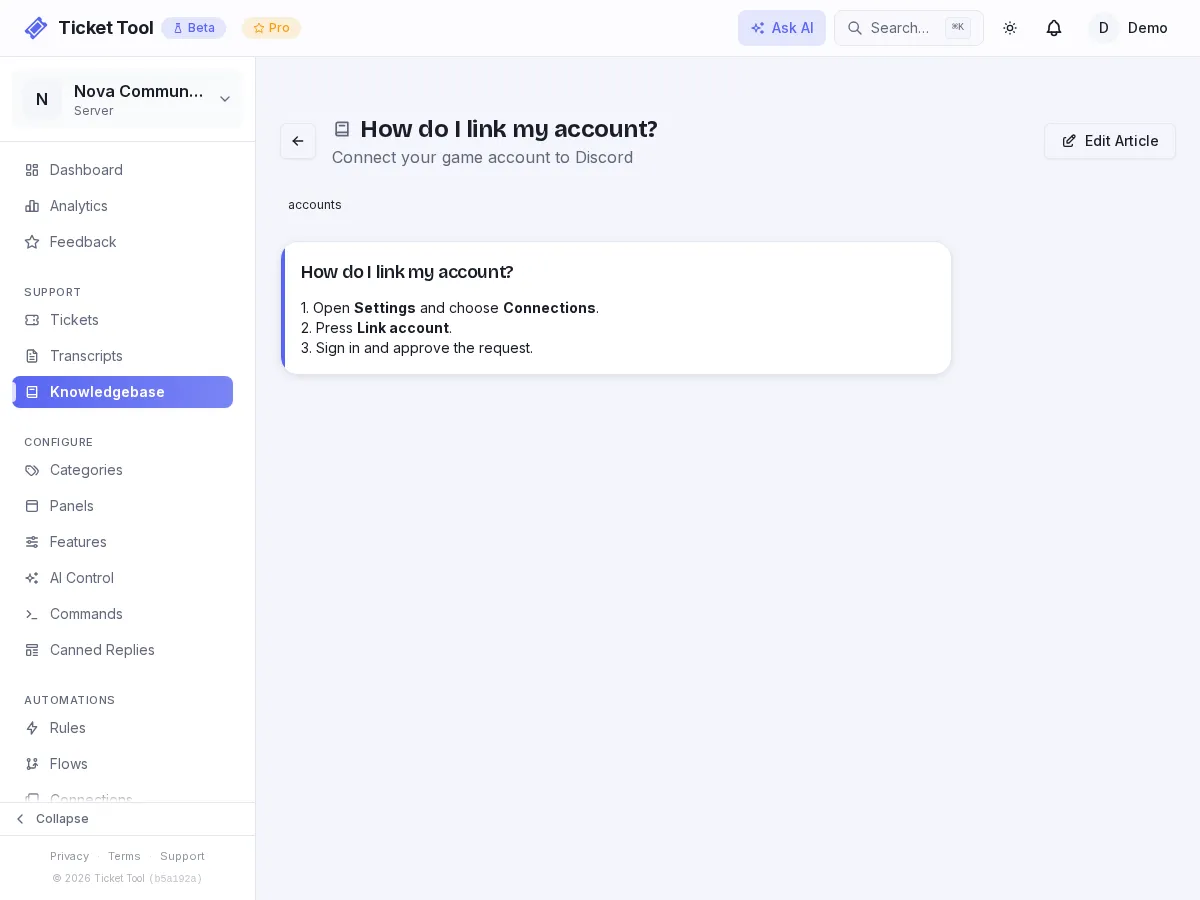
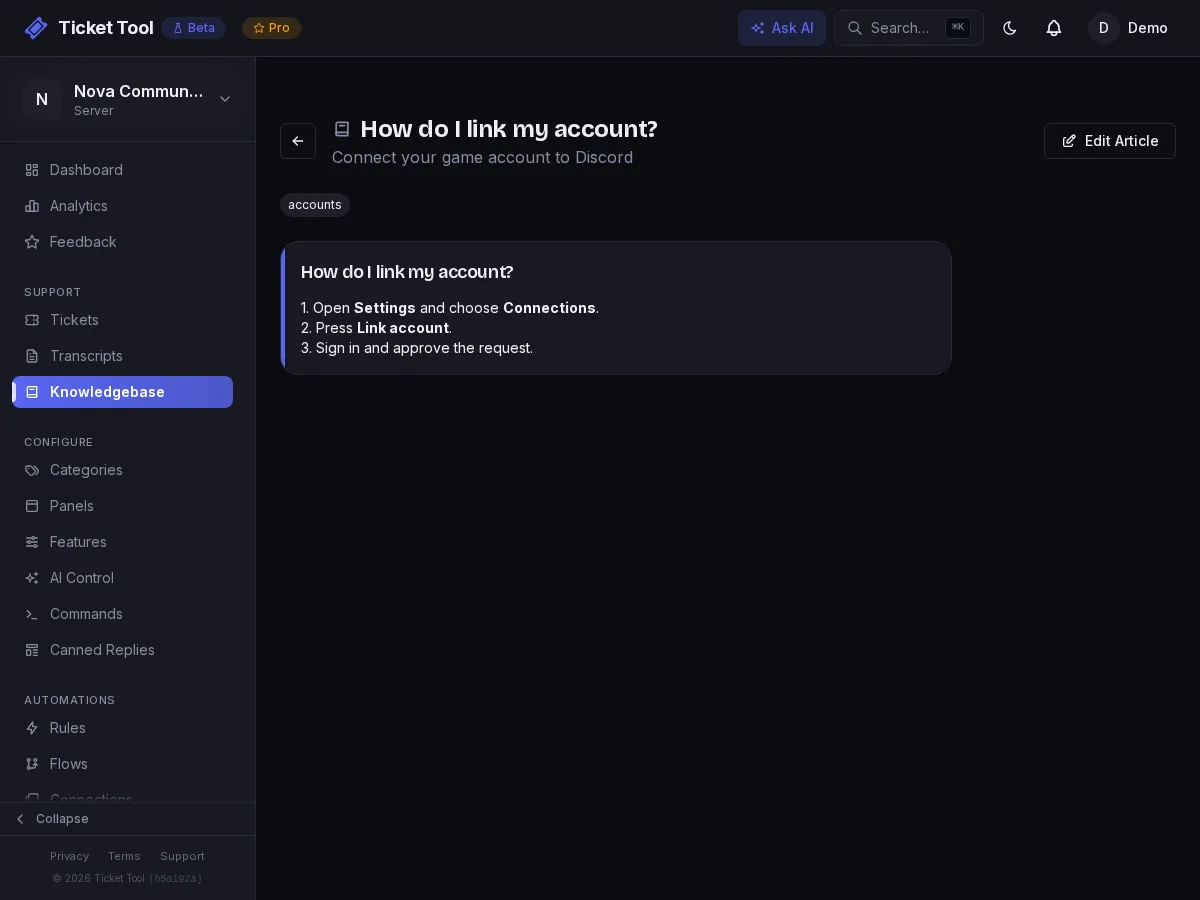
- Open Settings and choose Connections. 2. Press Link account. 3. Sign in and approve.
If it answered your question, there is nothing else to do. If not, we'll open a ticket so a person can help.
Set it up
Write the article
Open Dashboard → Knowledgebase and create an article for the question you get most. Give it a clear title, then write the answer on its first page. Each page is a Discord embed, so short steps and bold headings read well.
Leave Published switched on (it is on by default, in the article's Settings
tab). The flow shows whichever article you pick, but only published articles
turn up in search, in /kb and in AI answers.
Write it for a skim
Members are mid-problem and impatient. Lead with the fix, put the reason after it, and keep each page to what fits on a phone screen.
Import the template
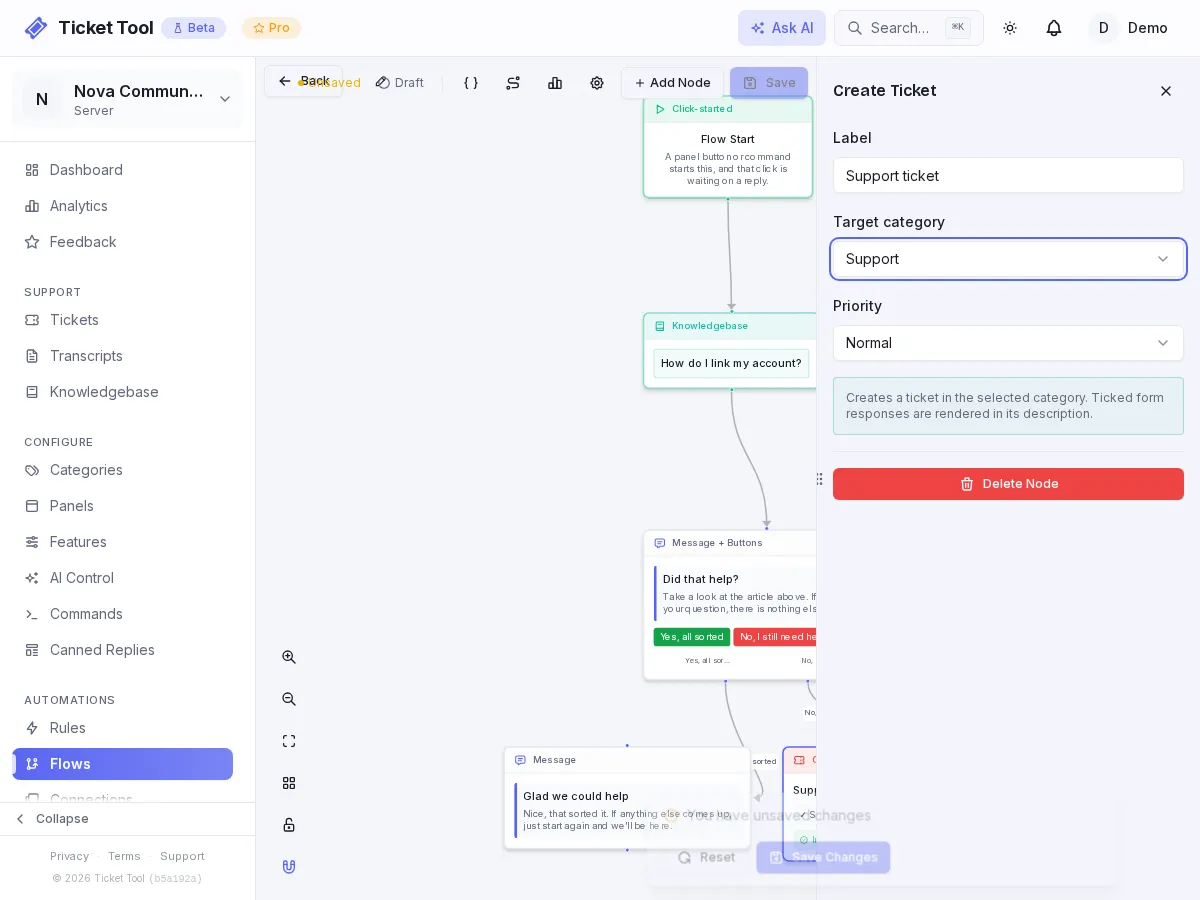
Start from the Check the FAQ first templateOn Automations → Flows, press Templates and pick Check the FAQ first. It creates a flow with four steps: show the article, ask "Did that help?", say thanks on Yes, and open a ticket on No.
Choose the article and the category
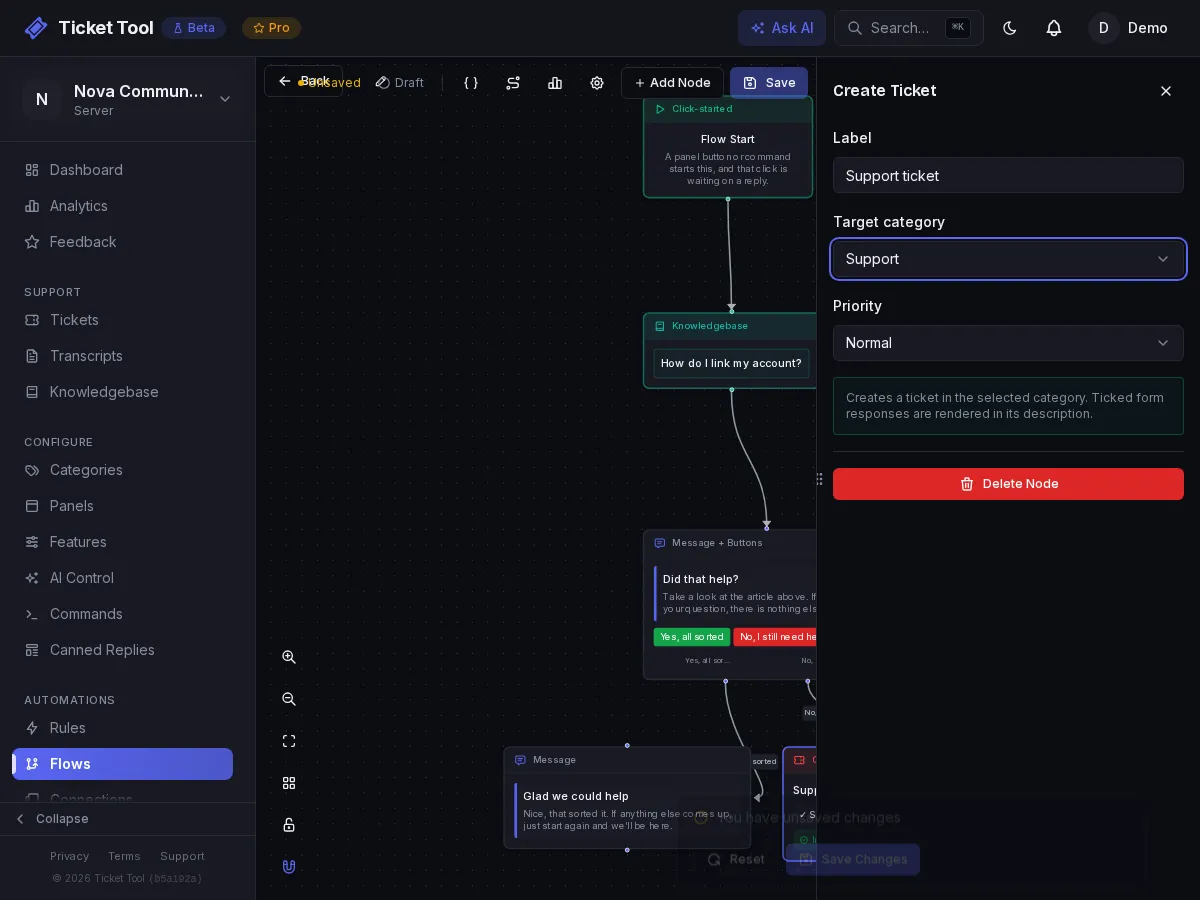
Click the Suggested article node and pick your article. Then click the Support ticket node and choose the category tickets should open in. Both are blank on import, and the flow will not work until you set them.
Turn it on
Press Save, then open the settings menu and choose Activate Flow.
Point a panel button at it
Open Panels, edit a panel, press Add Item, and under Flow or Category
choose the flow instead of a category. Save, then post or update the panel with
Send panel on the Panels page or /setup-panel.
/setup-panelTry it both ways
Press the button and choose Yes, then press it again and choose No. Confirm that Yes ends quietly and No opens a ticket in the right category.
Cover more than one question
One flow shows one article. There are two clean ways to cover more.
One flow per topic
Copy the flow, swap the article, and give each its own panel button. Simple, and each button says exactly what it does.
One button, a menu
Start from Route by topic instead: members pick a topic from a set of buttons. The template opens a ticket for each choice, so swap each Create Ticket step for a Knowledgebase node to show an article.
Staff can also send any published article into an open ticket with /kb.
How many articles you can have
| Knowledgebase | Free | Community | Pro |
|---|---|---|---|
| Articles | 10 | Unlimited | Unlimited |
Community and Pro also get a public web version of the same library, so members can search it without opening Discord. See the public portal guide.
Troubleshooting
| What you see | Do this |
|---|---|
| The flow runs but shows no article | The article node is still blank, or the article was deleted or has no page content |
| No opens no ticket | The ticket node has no category set |
| The button does nothing | The flow is not switched on, or the panel was never updated |
| You are near the flow limit | Each flow counts toward the active flow limit on your plan. Turn off flows you no longer use |