Your first ticket panel in 2 minutes
Add the bot, pick a template, press Apply. You end up with ticket categories, a panel your members can click, and private ticket channels that open when they do. All of it happens in Discord.
You need the bot in your server and Manage Server permission. Add the bot first if you have not, then open the dashboard.
What you get
Categories
One or more ticket types, each with its own button, already named.
A panel
The message with the buttons, posted in the channel you choose.
Private channels
Each ticket opens in its own channel that only the member and staff see.
Set it up
Add the bot
Pick your server and authorize. Leave the requested permissions on: the bot needs them to create ticket channels and post the panel. The full walkthrough is in Adding the Bot.
Press Get Started
When the bot joins, it posts a welcome message in your server, mentioning the person who added it, and sends that person a direct message with an Open the setup guide button that jumps back to it. Press Get Started.
Thanks for adding Ticket Tool to your server! Press Get Started below, or run /setup.
If you cannot find the message, run /setup in your server. It shows the same
choice with a Let's Go! button.
Only an admin can do this
The setup buttons check that you have Manage Server. If nothing happens when you press one, check your role.
Choose a starting point
The bot shows a menu of setups. Pick the one closest to your server. You can change everything afterwards, so this is a head start and not a commitment. The buttons on the panel it posts are labeled Get help, Report, Partnership, Order, Payment and Refund, and you can rename them later.
| Template | Creates | Good for |
|---|---|---|
| General support | One category, Support | Anything. The simplest thing that works |
| Community | Support, Report a Member, Partnership | Community servers that get reports and partner requests |
| Store or commissions | Orders, Payment Issues, Refunds | Shops, commissions, anything that takes money |
Pick the setup closest to how your server works. You will see exactly what it creates before anything happens, and you can change all of it afterwards.
- 🎫 General support
- 💬 Community
- 🛒 Store or commissions
Check the preview
After you pick, the bot lists the categories it will create and the channel it will post the panel in. Nothing is written yet, so you can press Back and try another template.
To post the panel somewhere else, use Put the panel somewhere else and pick a channel. Otherwise it goes in your server's system messages channel if the bot can post there, or else the first text channel it can post in. Apply is greyed out until there is a channel.
Press Apply
The bot creates the categories and posts the panel. When it finishes you get a confirmation with two link buttons: Set a staff role and Open dashboard. Both open the dashboard.
The panel is in your channel. Members can open a ticket right now.
Try it
Go to the panel channel, press a button, and check that a private ticket channel appears. Send a message, then close the ticket and confirm the close works. You are done.
Set a staff role
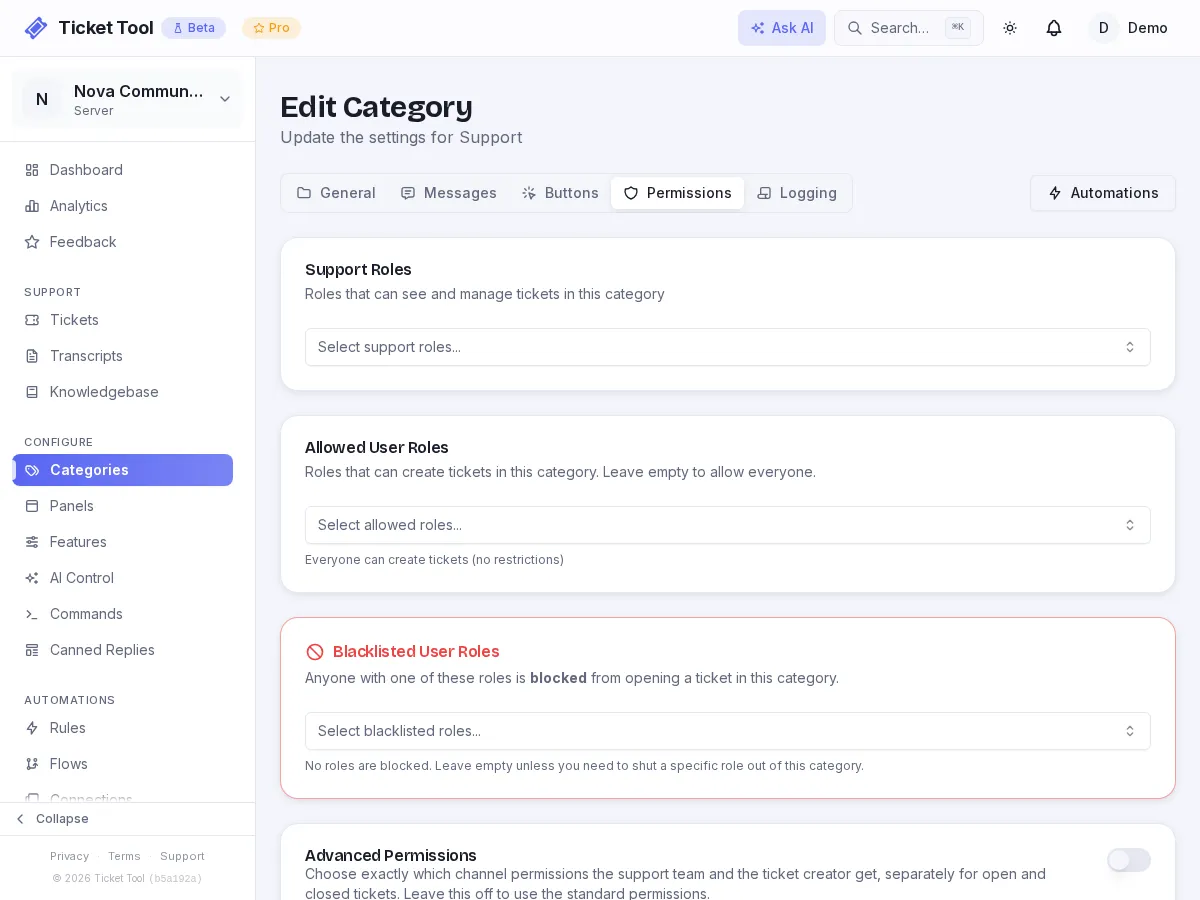
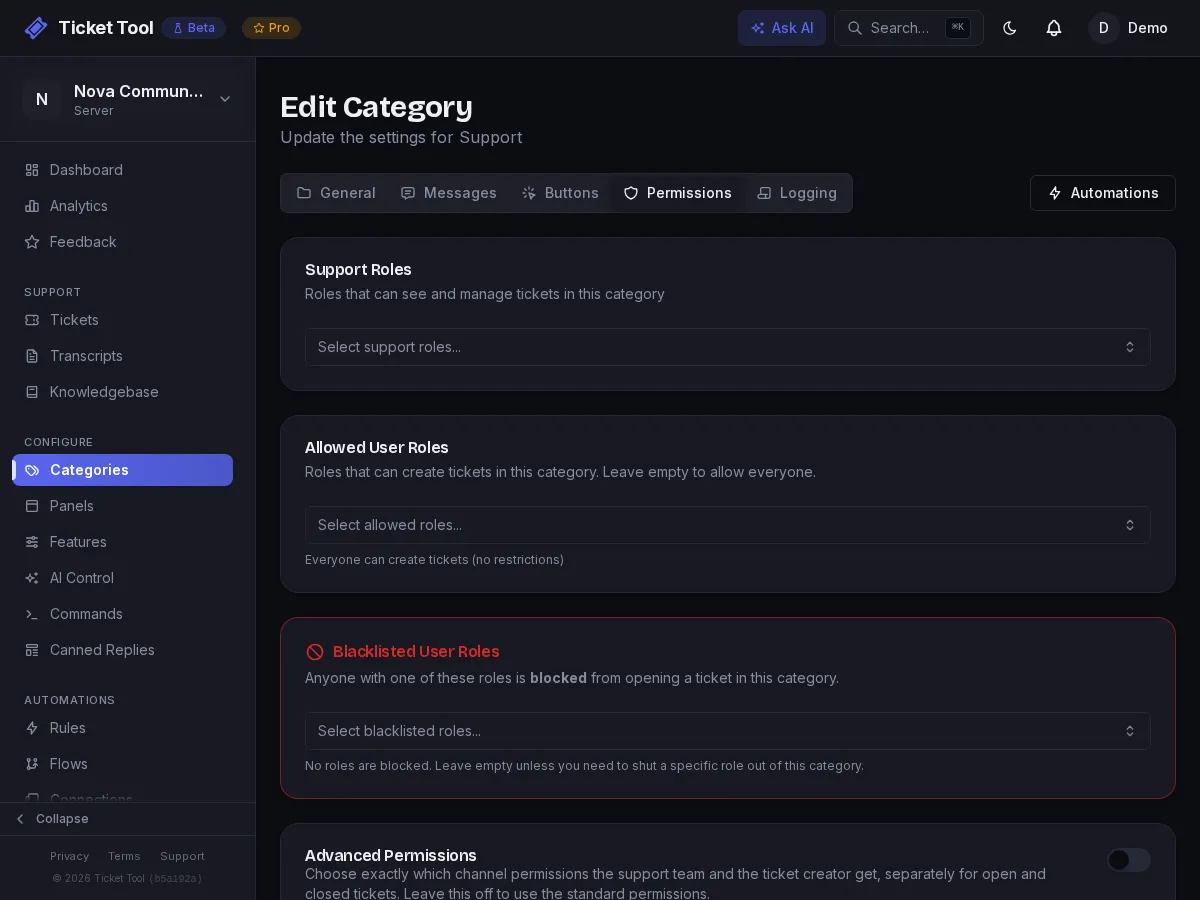
The templates give every role that has Manage Server access to the new categories. To let your support team see the ticket channels, open Dashboard → Categories, edit a category, and add the role under Permissions → Support Roles. Do this for each category.
The Set a staff role button opens Dashboard → Permissions, which is a different setting: it controls what a Discord role can do in the dashboard (Admin, Manager, Support Staff, KB Editor), not which ticket channels it sees.
Plan limits
Templates count against your plan like anything else. The Community template makes three categories, the Store template makes three, and the panel counts toward your panel limit.
| Setup limits | Free | Community | Pro |
|---|---|---|---|
| Ticket categories | 5 | Unlimited | Unlimited |
| Panels | 3 | Unlimited | Unlimited |
If a template would go over your category limit, the bot creates the categories that fit and posts the panel with those, without a warning. If it would go over your panel limit, the categories are created but the panel is not, and the bot says "Your plan does not allow another panel." Categories whose names already exist are skipped, and if all of them exist the bot stops with "Nothing to create".
If something goes wrong
| What you see | Do this |
|---|---|
| Bot is missing View Channel on the category | Give the bot's role View Channel on the ticket category, or press Sync Permissions in the category's settings |
| The panel did not post | The bot needs View Channel, Send Messages and Embed Links in that channel. Pick another channel with Put the panel somewhere else |
| "The bot needs a couple more permissions" | Give the bot Manage Channels and Manage Roles in Server Settings, then press Apply again |
| Ticket channel is not created | The bot needs Manage Channels on the Discord category tickets go in |
| An error about mentioning a role | Turn on "Allow anyone to @mention this role" for the staff role in Discord's role settings |
| You added the bot and cannot find the welcome message | Check your direct messages: the bot sends a link to it |
What to do next
Take staff applications
A multi-page form, a review channel and an Approve button that gives the role.
Run it in your language
Translate every button and message the bot sends.
Answer common questions first
Show a help article before a ticket opens.
Let AI answer first
Reply from your knowledge base the moment a ticket opens.