Set up ban appeals and user reports
Reports and appeals have the same problem: the first message is usually vague, and moderators spend the first ten minutes asking who, what and where. A short form up front gets them the answers before the ticket opens.
You need the bot in your server and Manage Server permission. Add the bot first if you have not, then open the dashboard.
Both use a template and both open a ticket. Do one or both.
Report a user
Members tell your moderators about rule-breaking privately, with the name, what happened and a link to evidence.
Make a private category
Reports name other members, so nobody but moderators should see them. Create a category for them under Categories with New Category. On its Permissions tab, add only your moderator role under Support Roles. On the General tab, point Discord Category at a Discord category members cannot read.
Import the template
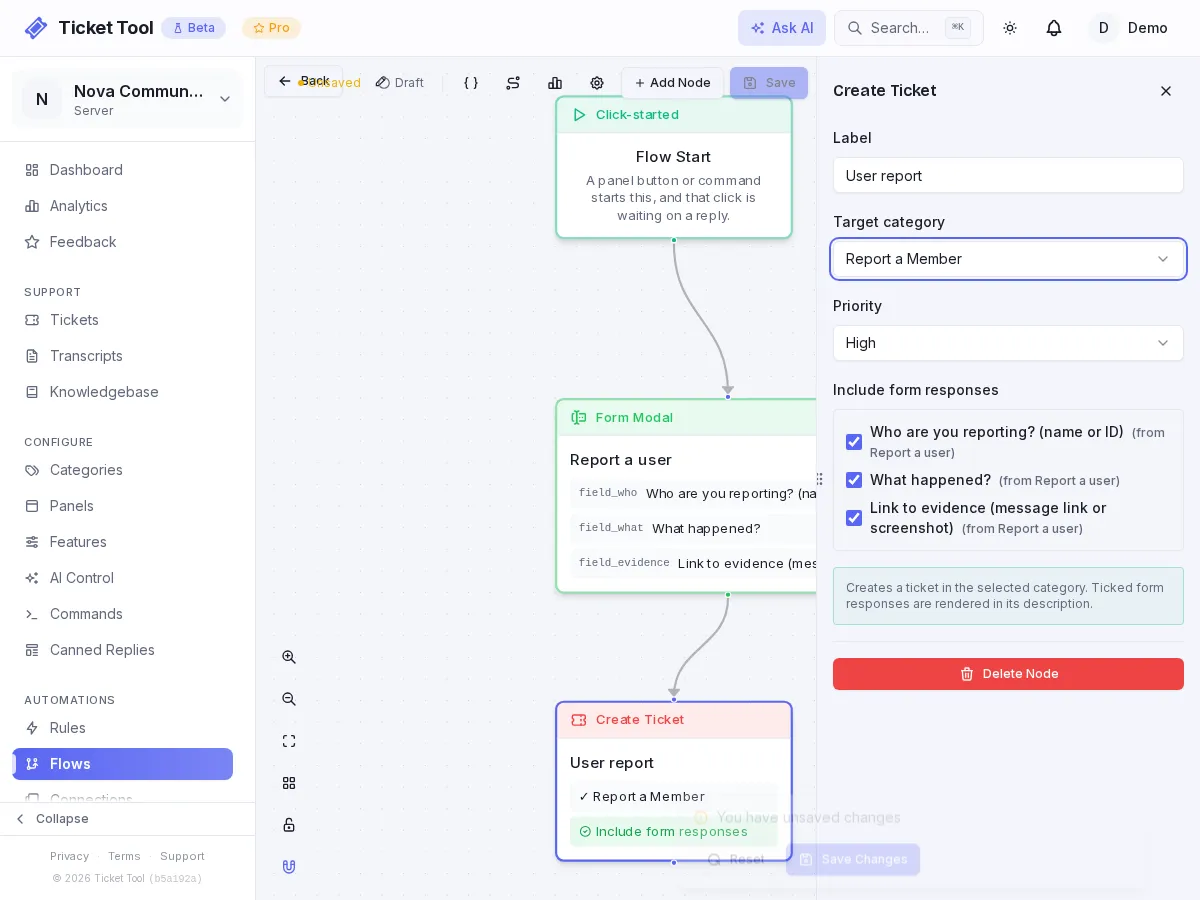
Start from the Report a user templateOn Automations → Flows, press Templates and pick Report a user.
Set the category and save
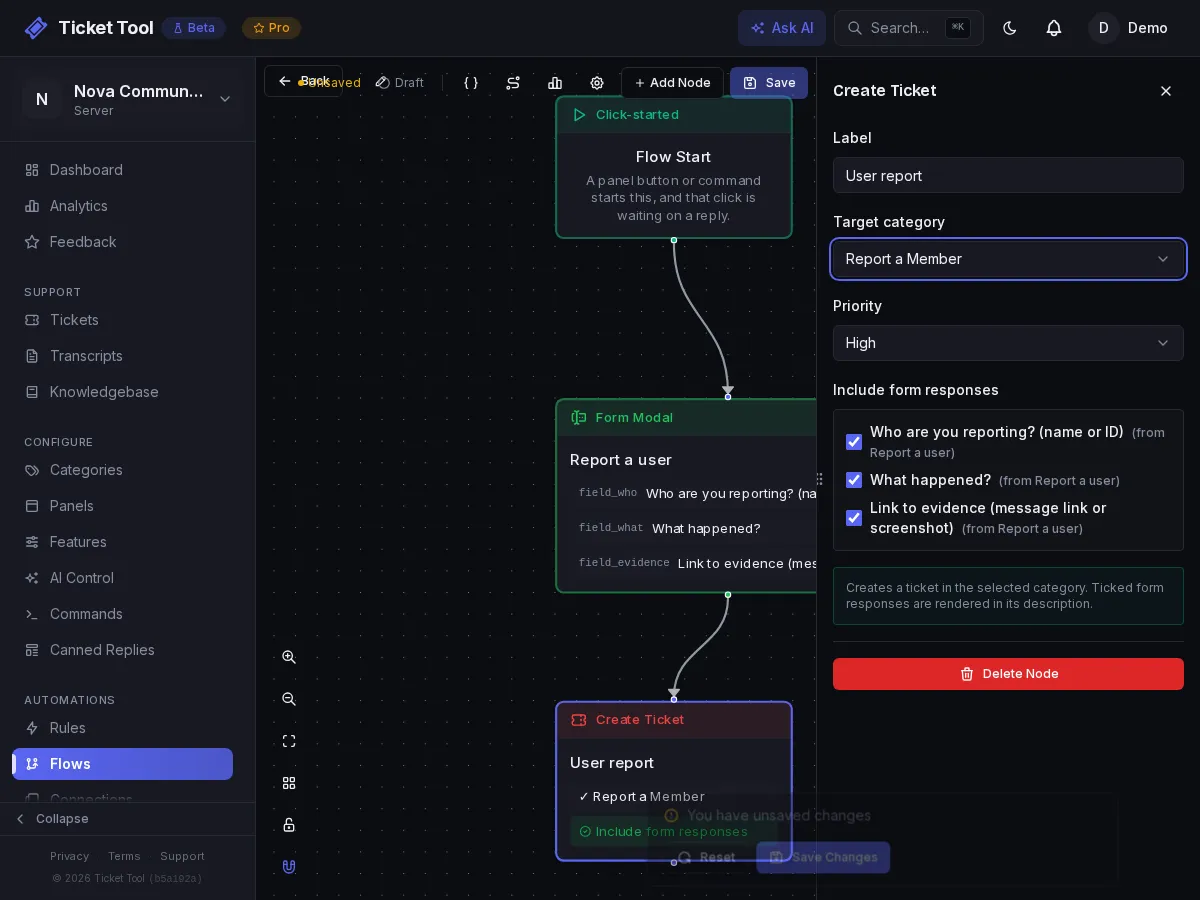
Open the User report node and choose the private category. Edit the questions if you want different ones. Press Save, then open the settings menu and choose Activate Flow.
Add a panel button
Open Panels, edit a panel, press Add Item, and under Flow or Category
choose the Report a user flow. Give it a button label such as "Report a member".
Save, then post the panel with Send panel or /setup-panel. If you used the Community template in
your first panel, a Report a Member
category already exists. Choose that category on the flow's User report node
instead of making a new one, and check that its support role is your moderators.
Ban appeals
A banned member cannot open a ticket in the server that banned them
They cannot see its channels, so a panel there is out of reach. Run appeals in a separate appeals server: add Ticket Tool to it, set the flow up there, and put its invite link in your ban message. Moderators review appeals in that server.
Create the appeals server
Make a small Discord server for appeals and add the bot. Give your moderators a role in it.
Import the template
Start from the Appeal a ban templatePick Appeal a ban from Templates. It has an intro message with a Start my appeal button, a three-question form, and an Appeal review ticket.
You can appeal your ban here. Click below to fill out a short form. A moderator will review your case and get back to you.
Set the category and post it
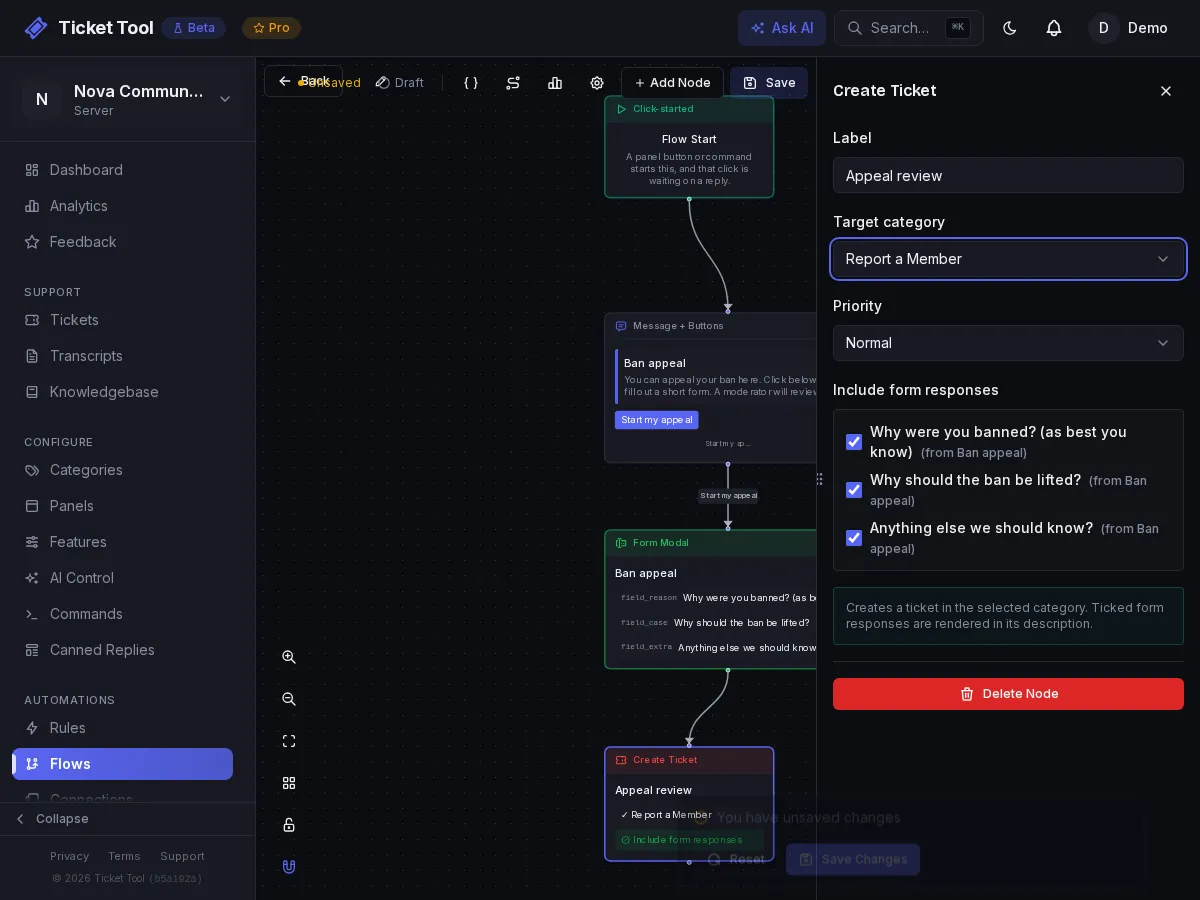
Choose the review category on the Appeal review node, press Save, and choose Activate Flow from the settings menu. Then add a panel item for the flow (Panels, Add Item, Flow or Category) and send that panel to the appeals server's welcome channel.
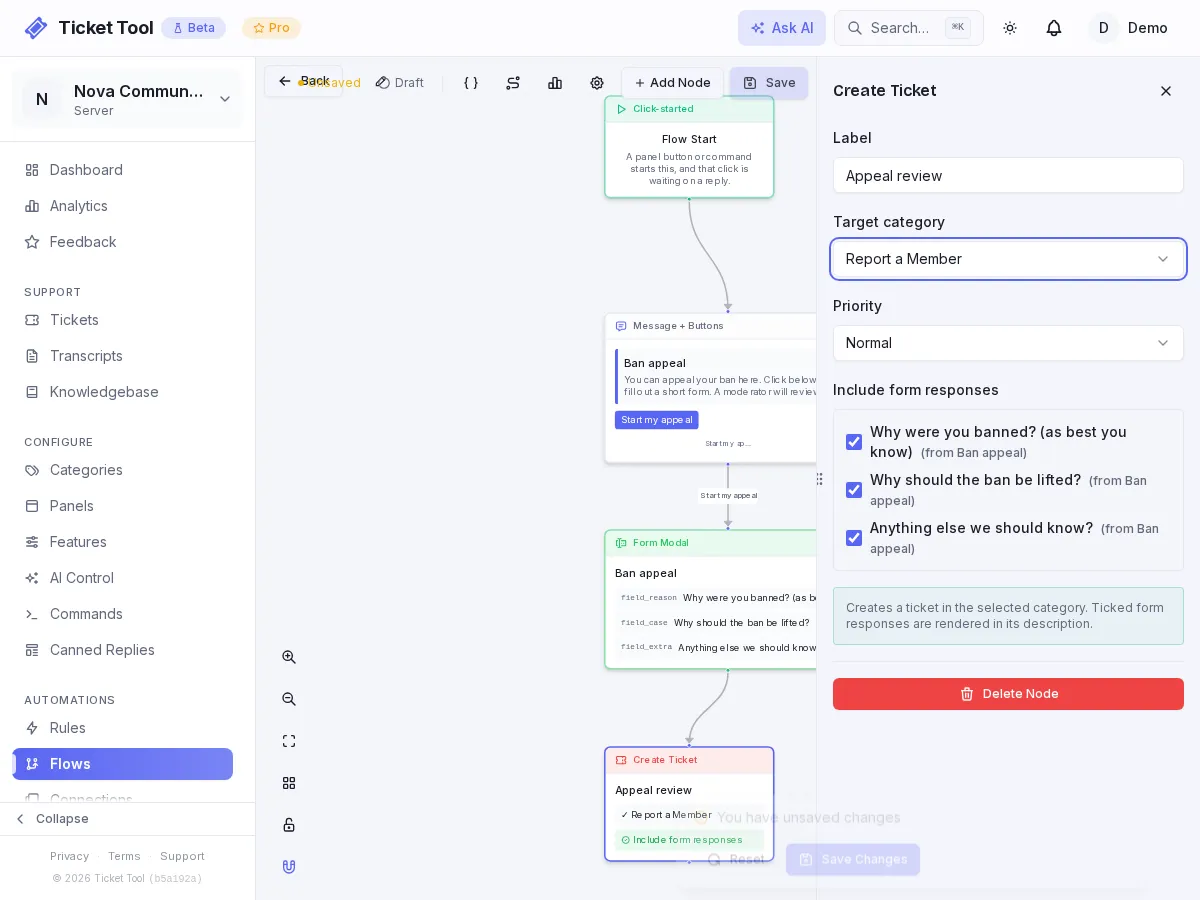
The form asks why the member was banned "as best you know", so moderators check the answer against your own ban records.
Tips for both
- Keep forms to three questions. People abandon long ones, and they do not need to be complete to be useful.
- Put the reason for the form in its intro text. Members answer better when they know a person reads it.
- Use a canned reply for the answer you give most often, so the decision text is consistent between moderators.
Troubleshooting
| What you see | Do this |
|---|---|
| Moderators cannot see the tickets | The category's support role is not the moderator role, or the Discord category hides it |
| The form opens but no ticket appears | The ticket node has no category, or the bot cannot Manage Channels there |
| Members are being asked something you did not write | The template's default questions are still in place. Edit them in the Modal node |